Audio Visualizer Spotify: Troubleshooting Checklist

MuseGen Team
5/13/2026
If you've ever played a favorite track and thought, "Why can't I see the beat?" you're not alone. The search for an audio visualizer Spotify experience usually starts when Canvas is missing, a third-party visualizer won't react, or your setup suddenly stops working after an update. I've run into this personally - one day everything pulsed perfectly, the next day the visualizer "heard" system sounds except Spotify, which is a classic symptom of audio-routing changes. This checklist walks you from the fastest fixes to the more technical ones, so you can get visuals back with minimal guesswork.
Does Spotify have an audio visualizer (built-in)?
In most current versions, Spotify does not offer a built-in audio visualizer in the way people mean (bars/waveform reacting to frequencies). Spotify Community answers have long noted that the old desktop visualizer behavior didn't carry forward and that mobile never truly supported a classic visualizer. What Spotify does have is Canvas - a short looping visual artists can upload that plays in the Now Playing view on mobile, which is not the same as a real-time spectrum analyzer.
To sanity-check what you're seeing:
- Canvas = artist-provided looping clip (not audio-reactive).
- Visualizer = audio-reactive bars/waves based on frequencies/volume in real time.
Authoritative references:
- Spotify Community discussion on visualizer status: Spotify Community: "Visualizer error" thread
- Official Canvas info: Spotify for Artists - Canvas
- Canvas explained for artists: Identity Music - Spotify Canvas guide
Quick diagnosis: Which "Spotify visualizer" are you trying to use?
Before troubleshooting, identify your path. Most audio visualizer Spotify setups fall into one of these:
- Canvas inside Spotify (mobile)
- Web visualizer that connects to Spotify (e.g., Kaleidosync/Tessellator-style tools)
- Desktop visualizer that listens to system audio (Rainmeter/Monstercat/Kauna/VLC, etc.)
- Chrome extension visualizer for Spotify Web Player
Each one breaks for different reasons - permissions, device selection, DRM/protected audio paths, or OS audio session changes.
Troubleshooting Checklist (fastest fixes first)
1) Confirm you're not expecting Canvas to behave like a visualizer
Canvas won't "dance" to the beat; it loops. If you want a true visualizer, skip to the sections on system-audio or Spotify-connected visualizers.
If you only need visuals inside Spotify, Canvas is the intended feature:
- Artists manage it in Spotify for Artists: Canvas
2) "How do I turn on the Spotify visualizer?" (the setting people confuse)
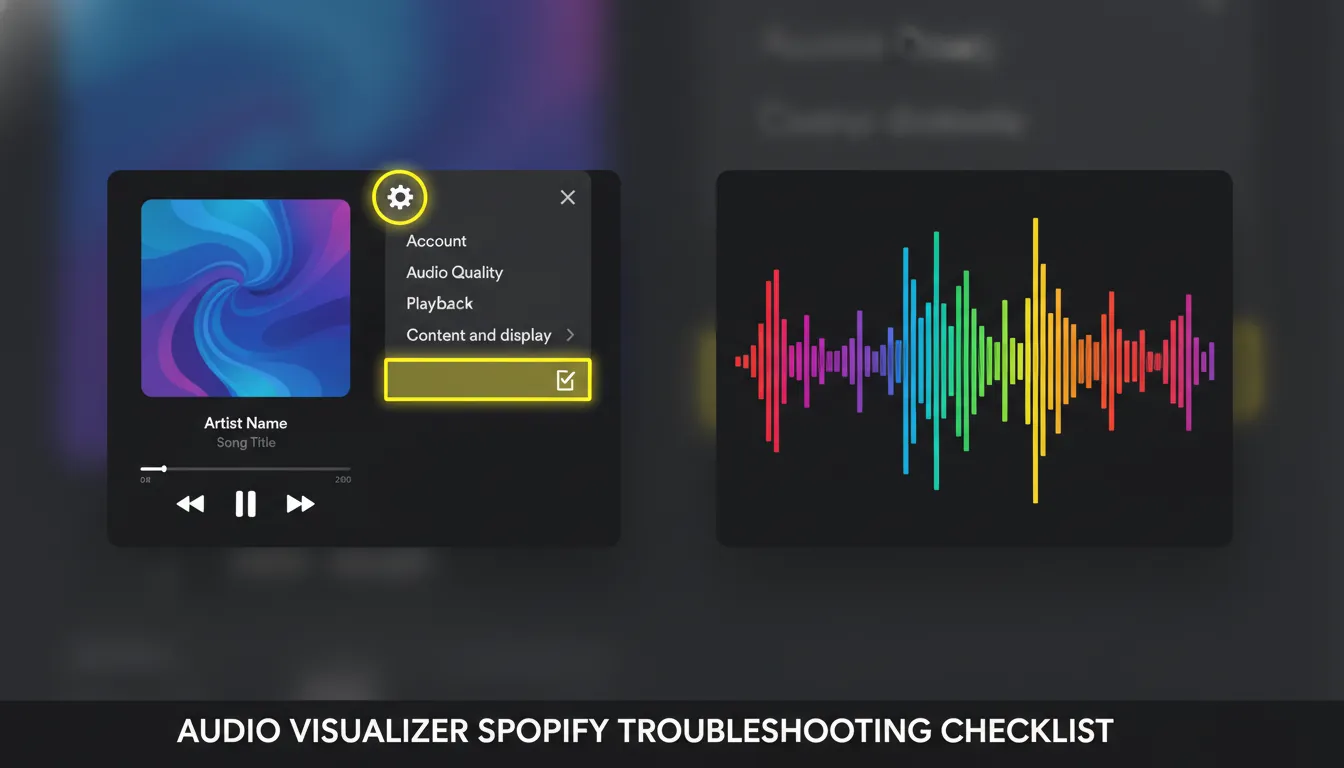
A lot of tutorials point to Settings and privacy -> Content and display (especially on mobile). That's usually where Canvas is toggled, not a real-time visualizer.
On mobile, try:
- Tap your profile icon.
- Go to Settings and privacy.
- Open Content and display.
- Toggle Canvas on/off to test.
If your goal is to reduce battery drain or stop visuals, turning Canvas off is also a known fix path. Some guides explicitly recommend disabling Canvas to save power: ViWizard battery drain tips (Canvas toggle steps)
3) If a third-party visualizer suddenly stopped working, suspect audio capture changes
This is extremely common: a visualizer works for weeks, then "randomly" stops - exactly like reports seen in community threads for popular visualizer projects. In my experience, the trigger is usually one of these:
- Spotify app update changed its audio session behavior
- Your OS switched default output device (Bluetooth headset, HDMI monitor, etc.)
- Your visualizer is listening to the wrong input (mic vs loopback/system)
- Exclusive-mode audio or protected audio path blocks capture
A real-world example of "worked then stopped" is documented here: GitHub - "Visualizer not working with Spotify" issue
Do this quick test:
- Play a YouTube video. Does the visualizer react?
- Yes -> It's likely Spotify-specific audio capture/DRM/output routing.
- No -> It's a general audio input/output selection problem.
4) Fix the most common cause: wrong playback device or wrong capture device
For system-audio visualizers (and some Spotify-connected tools), device routing is everything.
- On Spotify, click Devices Available and confirm you're playing on the expected device.
- In your visualizer app, confirm it is listening to:
- Windows: "Stereo Mix", "What U Hear", or a loopback input
- macOS: a loopback driver or the correct aggregate device (varies by tool)
- Linux: correct PulseAudio/PipeWire monitor source
If your visualizer supports Spotify Connect-style routing, you may need to set the visualizer as the active device (some web visualizers behave like a "device" you cast to).
5) If you're using a web Spotify visualizer: re-login and re-select the "device"
Spotify-connected visualizers (often geometric or 3D) typically require:
- Spotify login (API authorization)
- Selecting the visualizer as the playback device in Spotify
If it "connects" but doesn't animate, it's often stuck on the wrong device session.
6) If you're using Spotify Web Player: try a Chrome audio visualizer extension
Browser-based visualizers can be the simplest route because they "hear" tab audio rather than fighting with app audio capture. If you go this route:
- Use Spotify Web Player in Chrome
- Ensure the extension is allowed to access audio from the active tab
- Disable other extensions that also manipulate audio
This approach is widely recommended by visualizer roundups because it's universal across sites (Spotify web, YouTube, etc.).
7) Mobile: check battery optimization and background restrictions
Mobile visualizer-style apps (or anything that needs continuous audio analysis) may be killed by battery optimizations. Even Spotify features like Canvas can be part of "battery drain" discussions, so troubleshooting often overlaps with battery settings:
- Disable aggressive background restrictions for your visualizer app
- Consider turning Canvas off if you're diagnosing performance issues
References that discuss Spotify + battery behavior and related toggles:
Common setups compared (choose the right method)
| Method | Works With | Best For | Typical Failure Point | Effort |
|---|---|---|---|---|
| Spotify Canvas (inside app) | Spotify mobile Now Playing | Artist visuals, lightweight engagement | Canvas toggled off, missing on some tracks | Low |
| Web visualizer (Spotify login + device) | Desktop browser + Spotify Connect-style device | Fast, pretty visuals without audio routing | Wrong device selected, auth/session issues | Medium |
| System-audio visualizer (Rainmeter/Kauna/VLC-style) | Any app audio (including Spotify app) | Max control, desktop setups/streams | Wrong capture input, protected audio path, output changes | Medium-High |
| Chrome extension visualizer | Spotify Web Player | Simplest "it just reacts" workflow | Permission conflicts, tab audio capture blocked | Low-Medium |
Step-by-step: A practical "works in 10 minutes" flow I use
When I'm setting up an audio visualizer Spotify workflow for creators (stream overlays, music mood screens, studio background visuals), this is the order that wastes the least time:
- Try Spotify Web Player + a Chrome visualizer extension (fastest baseline).
- If you need Spotify app playback, switch to a system-audio visualizer and confirm loopback input.
- If your visualizer is Spotify-connected, re-auth and re-select the visualizer as the device.
- If it still fails, test with non-Spotify audio to isolate whether the problem is Spotify-specific.
Canvas vs audio visualizer: what creators should use (MuseGen perspective)
Canvas is great for listener engagement inside Spotify, but it's not built for reactive visuals or exportable content. If you're a creator making short-form videos, streams, or promos, you usually want a real audio visualizer you can render and post.
This is where I've seen teams pair Spotify listening with a production workflow:
- Use Spotify for discovery/reference listening
- Generate original tracks and stems with MuseGen (so you control rights, stems, and structure)
- Then build a visualizer or full video output for TikTok/YouTube/ads
If you're exploring that pipeline, the MuseGen One-Click MV Generator and stem exports (WAV/MIDI) are designed for exactly this kind of "audio-first -> visuals-second" production loop.
Internal links:
How To Fix Spotify Web Player Not Working (Not Playing Music On PC)
"30 second rule" on Spotify (why it matters for visual content)
The "30 second rule" generally refers to how a stream is counted once a listener passes a threshold (commonly discussed as ~30 seconds). For visualizers and promo content, the practical takeaway is simple:
- Make your visuals interesting immediately
- Don't wait for a "drop" at 0:45 if the goal is retention or saves
If you're producing Canvas-like loops or social clips, aim for strong motion in the first 1-2 seconds.
Troubleshooting: specific symptoms and fixes
Symptom: Visualizer reacts to everything except Spotify
This is the classic case reported by users of RGB/audio-reactive tools and desktop visualizers. Fixes to try:
- Switch Spotify output (speakers to headphones, then back) and switch back
- Disable exclusive mode (Windows sound settings, device properties)
- Use Spotify Web Player instead of desktop app
- Ensure your visualizer is using loopback/system capture, not microphone
Related community report example: GitHub issue - stopped working with Spotify
Symptom: Canvas doesn't show on mobile
- Confirm Canvas is enabled in Settings -> Content and display
- Try another track (not all tracks have Canvas)
- Update the app (Canvas behavior can change across versions)
Official feature context: Spotify for Artists Canvas
Symptom: Web visualizer connects but shows no animation
- Re-login (token/session refresh)
- In Spotify, open Devices Available and select the visualizer device
- Stop playback, restart playback
Conclusion: Get your "audio visualizer Spotify" setup stable
If you came here hoping for a built-in Spotify visualizer toggle, the reality is: Spotify's in-app visual layer is mostly Canvas, not a true audio-reactive visualizer. The most reliable path is choosing the right tool for your platform - browser extension for speed, system-audio visualizers for control, and Spotify-connected web visualizers for polished geometric effects. Once you treat it like an audio-routing problem first (device in, device out), most "it randomly stopped" cases become fixable in minutes.
If you're building visuals for original music (not just listening), consider generating tracks and stems in MuseGen and pairing them with a production-grade visualizer workflow so your visuals are exportable, brandable, and reusable.
FAQ (People Also Ask)
1) Does Spotify have an audio visualizer?
Spotify typically does not include a classic built-in audio visualizer. It offers Canvas (looping visuals) on many tracks, which is not audio-reactive.
2) How do I turn on the Spotify visualizer?
What most people mean is turning on Canvas: Profile icon -> Settings and privacy -> Content and display -> toggle Canvas.
3) How to make a Spotify visualizer?
Common workflow: pick a visualizer tool -> play Spotify (often via Web Player or Spotify Connect) -> customize effects -> export/share. If you need full control, use audio you own (e.g., stems/WAV) and render a video.
4) Does Spotify have a sound visualizer on mobile?
Not as a traditional real-time spectrum visualizer. Mobile supports Canvas on many tracks in Now Playing.
5) Why is my audio visualizer not working with Spotify?
Most often it's wrong audio input/output routing, Spotify updates changing capture behavior, or the visualizer listening to the wrong device. Test with YouTube to isolate the issue.
6) What is the 30 second rule on Spotify?
It commonly refers to the idea that a stream is counted after a listener passes a threshold (often cited as ~30 seconds). For visuals, it's a reminder to hook attention early.
7) How many streams on Spotify to make $1,000,000?
It varies widely by payout rates, region, and distribution agreements. Use any "streams to dollars" estimate as a rough range, not a guarantee, and validate against your distributor statements.