 MuseGen
MP3 to WAV Converter Checklist: Fast, Lossless Results
MuseGen Team
4/30/2026
You've got an MP3 you need in WAV - maybe for a DAW session, video edit, stem export, or a client who says "send WAV only." The tricky part: "MP3 to WAV" can be fast, but it's not magic. I've converted thousands of files for edits and deliveries, and the best results come from a simple checklist: pick the right tool, choose sane settings, and verify you didn't break sample rate, loudness, or metadata.
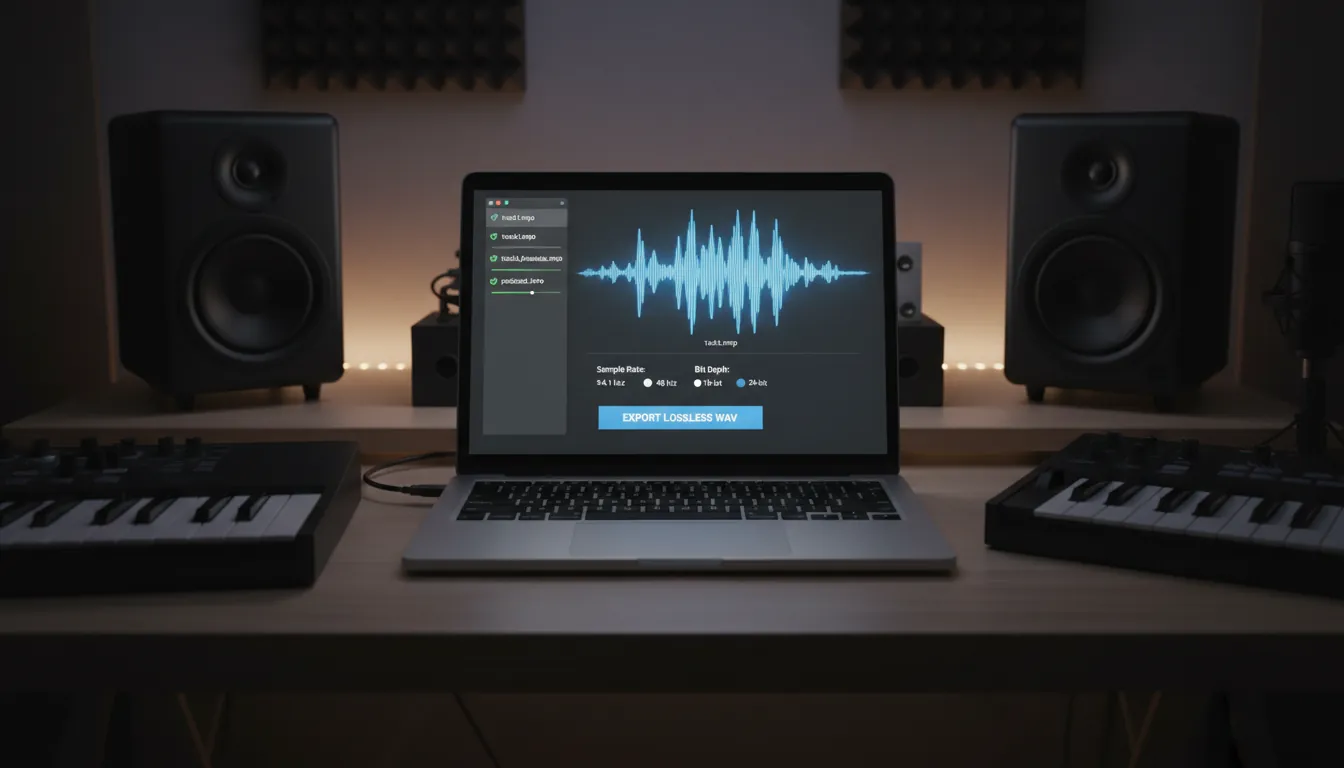
What "MP3 to WAV" really means (and what "lossless" can't do)
An MP3 is lossy: it permanently discards some audio detail to shrink file size. WAV is typically uncompressed PCM, which is why it's a go-to in editing and mastering workflows (and why it's large). Converting MP3 to WAV does not restore what was removed in MP3 compression - it just puts the same audio you have into a WAV container that software prefers.
Where "lossless" does apply: the conversion process can be "transparent" in the sense that it decodes the MP3 to PCM without adding extra damage, then writes that PCM as WAV. That's the goal for a clean MP3 to WAV conversion.
Quick checklist (do this before you convert)
Use this as your MP3 to WAV converter checklist to avoid common mistakes:
- Decide why you need WAV
- Editing/DAW/video: WAV is often required.
- Archiving: consider keeping the original MP3 too (WAV won't improve it).
- Choose "offline" for sensitive audio
- Client work, unreleased music, private recordings: prefer local tools.
- Match sample rate to your project
- Video: often 48 kHz
- Music/CD legacy: often 44.1 kHz
- Pick bit depth intentionally
- Delivery/editing: 24-bit is common
- If you must deliver 16-bit: dither only at the final step (see below)
- Batch convert with a predictable naming rule
- Avoid overwriting and keep versions clear.
- Verify the output
- Check duration, peak level (no unexpected clipping), and that it plays start-to-end.
Tool picker: safest options for MP3 to WAV
If your priority is safety and control, start with desktop tools. If your priority is speed on a one-off file, online converters can work - just be cautious about uploading.
| Option | Best for | Privacy | Batch? | Notes | | -------------------------- | ---------------------------------------- | --------------- | ------ | -------------------------------------------------------------------- | | Audacity | Free, reliable conversions + quick fixes | High (local) | Yes | Import MP3, Export as WAV; also useful for trimming and level checks | | fre:ac | Free dedicated converter | High (local) | Yes | Strong format support; simple workflow | | MediaHuman Audio Converter | Clean UI + metadata handling | High (local) | Yes | Known for solid tag handling and local processing | | Adobe Media Encoder | Pro pipelines + queues | High (local) | Yes | Great when you already use Adobe; supports parallel encoding | | CloudConvert / FreeConvert | Quick browser conversion | Medium (upload) | Yes | Review security policies; avoid for sensitive files |
Authoritative references worth reviewing:
- Adobe's workflow overview: Adobe Media Encoder MP3 to WAV guide
- Online converter with stated security posture: CloudConvert MP3 to WAV
- Background on lossless converter behavior and metadata considerations: Lossless audio converters overview
Step-by-step: convert MP3 to WAV (3 practical methods)
Method 1: Audacity (free, offline, best for quick fixes)
This is my "I need it done correctly" option because I can also inspect the waveform before export.
- Open Audacity.
- Drag your MP3 into the project (or File -> Import -> Audio).
- (Optional) Fix issues:
- Normalize if needed (careful - don't change levels unless you mean to).
- Trim silence or remove clicks.
- Go to File -> Export -> Export as WAV.
- Choose:
- Sample rate: match your destination (44.1k or 48k).
- Bit depth: 24-bit for editing; 16-bit for strict delivery specs.
Tip from experience: if your MP3 is already hot (near 0 dBFS), exporting to WAV won't clip by itself - but any later processing might. Leave headroom if you plan to mix.
Method 2: Adobe Media Encoder (fast queues, pro workflow)
If you're already in Adobe for video, this is a clean pipeline.
- Add MP3 files to the queue.
- Set Format: WAV.
- Open Export Settings to choose sample rate and channels.
- Start the queue.
Adobe documents the basic steps here: convert MP3 to WAV with Media Encoder.
Method 3: Online converter (fast, but use caution)
Online tools are convenient, but you're uploading audio to a third-party server. For sensitive audio (client work, unreleased tracks), I avoid this.
- Upload MP3.
- Select WAV output.
- Set options if available (sample rate, channels).
- Convert and download.
- Delete uploads if the service provides a manual delete option.
If you go this route, review stated security controls first (example): CloudConvert's MP3 to WAV page.
Settings that actually matter (and the ones that don't)
Sample rate: 44.1 kHz vs 48 kHz
Pick the sample rate that matches the project so you don't trigger extra resampling later.
- 48 kHz: common for video workflows
- 44.1 kHz: common for music delivery
If you change sample rate during production without converting properly, you can cause speed/pitch problems in some workflows. This is why matching the target early saves time.
Bit depth: 16-bit vs 24-bit (and dithering)
Bit depth affects dynamic range and noise floor. If you're delivering to platforms that demand 16-bit WAV, dither should be the last step in your chain - don't dither, then EQ again. iZotope explains why dithering must be last: What is dithering in audio?
Practical rule I use:
- Editing/mixing: export 24-bit WAV
- Final delivery when required: create a 16-bit WAV with one dither pass at the end
"Will converting MP3 to WAV lose quality?"
The MP3 already lost data during encoding. Converting doesn't usually make it worse if you're simply decoding to PCM and saving as WAV. But quality can degrade if you:
- Accidentally resample poorly (rare with modern tools, but possible)
- Normalize/compress unintentionally
- Re-encode repeatedly through lossy steps
Safety checklist: "Which MP3 converter is safest to use?"
If you're asking this, you probably care about privacy, malware, or licensing risk. Here's what I recommend in professional settings:
- Prefer offline converters for private or paid work.
- Download only from the developer's official site or a trusted app store.
- Avoid "free" sites that require:
- suspicious browser extensions
- forced installers
- unclear deletion policies
- If you must go online:
- use a service with published security statements
- avoid uploading unreleased music, client audio, or personal recordings
This aligns with why many users hesitate to convert MP3 to WAV online: uploads can create data exposure risk.
Pro workflow: MP3 to WAV for production in MuseGen
If your end goal is studio-ready production (stems, mastering, or DAW editing), WAV is the right working format. In MuseGen, a common flow is:
- Use MP3 references (small, easy to share) for quick review.
- Move to WAV exports for editing and mix decisions.
- Export WAV stems when you want detailed control in a DAW.
If you're building a full pipeline, these guides can help:
- AI Music Generator for creating tracks fast from prompts and inputs
- AI Vocal & Lyrics Generator for vocal drafts and lyric iterations
- Export WAV stems to refine mixes professionally
Troubleshooting: common MP3 to WAV problems (and fixes)
1) "My WAV is huge"
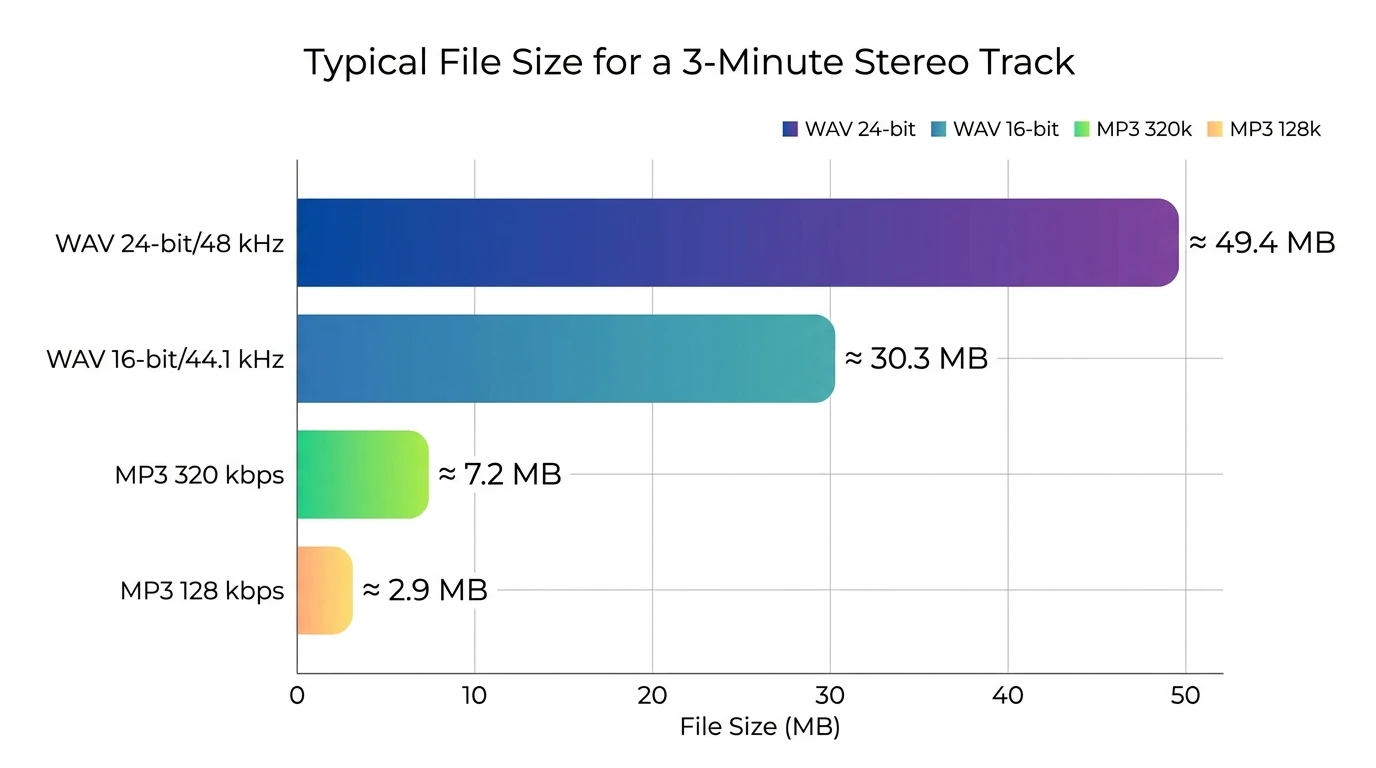
That's normal. WAV is uncompressed PCM. If you need smaller files for sharing, keep a parallel MP3 copy for distribution.
2) "My WAV sounds the same as the MP3"
Also normal. WAV won't "upgrade" lost detail. The win is compatibility and editability, not recovered fidelity.
3) "The WAV has no metadata/album art"
WAV metadata support is inconsistent across players and taggers. If metadata matters, consider:
- Keeping the MP3 for library listening
- Using a format with robust tagging like FLAC for archiving (when acceptable)
4) "The WAV is the wrong sample rate for my DAW/video editor"
Re-convert with the correct sample rate (44.1k or 48k). Don't rely on your editor to auto-fix if you want predictable results.
Audacity Sample Rates and Bit Depth
FAQ: MP3 to WAV
1) Can you convert an MP3 into a WAV?
Yes. Any standard audio converter can decode MP3 and export a WAV.
2) Does converting MP3 to WAV lose quality?
It doesn't restore lost detail, but a proper conversion typically doesn't add extra loss. Avoid extra processing or repeated lossy re-encoding.
3) Is WAV better quality than MP3?
WAV can store uncompressed audio, so it's capable of higher fidelity. But if the source is MP3, converting to WAV won't recreate what was removed.
4) Which MP3 converter is safest to use?
Offline tools are generally safest for privacy. If using online tools, pick reputable services with clear security and deletion policies.
5) Is it safe to use a free MP3 to WAV converter?
Sometimes. The main risk with free online converters is uploading sensitive files. For private audio, prefer free offline tools like Audacity or fre:ac.
6) What is the free program to convert MP3 to WAV?
fre:ac and Audacity are popular free options that work well for MP3 to WAV conversions.
7) Is WAV actually lossless?
WAV typically stores uncompressed PCM audio, which is lossless. It can preserve audio without compression artifacts.
Conclusion: your "fast, clean" MP3 to WAV habit
Think of MP3 to WAV like moving audio into a studio-friendly container: it won't time-travel and recover lost frequencies, but it will give you a dependable format for editing, mixing, and delivery. When I stick to the checklist - offline tool for sensitive audio, correct sample rate, sensible bit depth, and a quick verification pass - I get consistent results with fewer surprises.
If you're using WAV to move from idea to production faster, try generating a draft track in MuseGen, then export WAV stems for full control in your DAW. Share your use case (podcast, video, mastering, stems) in the comments and I'll recommend the cleanest settings for your exact workflow.