 MuseGen
White Noise Gen FAQ: Setup, Loops, and Best Settings
MuseGen Team
5/7/2026
White noise gen is the coworker who never talks - but somehow makes everyone else less distracting. If you're trying to sleep through traffic, focus in a shared office, or build a noise tool for audio work, the right setup matters more than people think. What volume is "safe," should you loop, and why do some generators sound hissy or glitchy? This guide walks you through practical, proven white noise gen settings, plus loop tactics and troubleshooting.
What "white noise gen" means (and when to use something else)
White noise is a steady sound with energy across the audible spectrum, often described as TV static or a fan. The goal isn't "nice audio" - it's masking: raising the background so sudden noises (voices, doors, traffic spikes) don't jump out. Many people prefer alternatives:
- Pink noise: smoother, less harsh; often better for sleep if white feels "hissy."
- Brown noise: deeper; better for low rumbles like HVAC or distant bass.
- Nature loops: relaxing, but can fail at masking if the loop has noticeable "events."
A good white noise gen setup is the one you'll use consistently, at a level that masks interruptions without being uncomfortably loud.
Quick-start: White noise gen setup in 5 minutes (phone, app, or hardware)
- Pick a source
- Phone app (most flexible, but can be interrupted by OS power-saving).
- Dedicated machine (most reliable for all-night playback).
- Computer/DAW/plugin (best for production workflows).
- Place it correctly
- Put the speaker between you and the noise source (window, hallway wall).
- Keep it a short distance away so you can run lower volume.
- Set a baseline volume
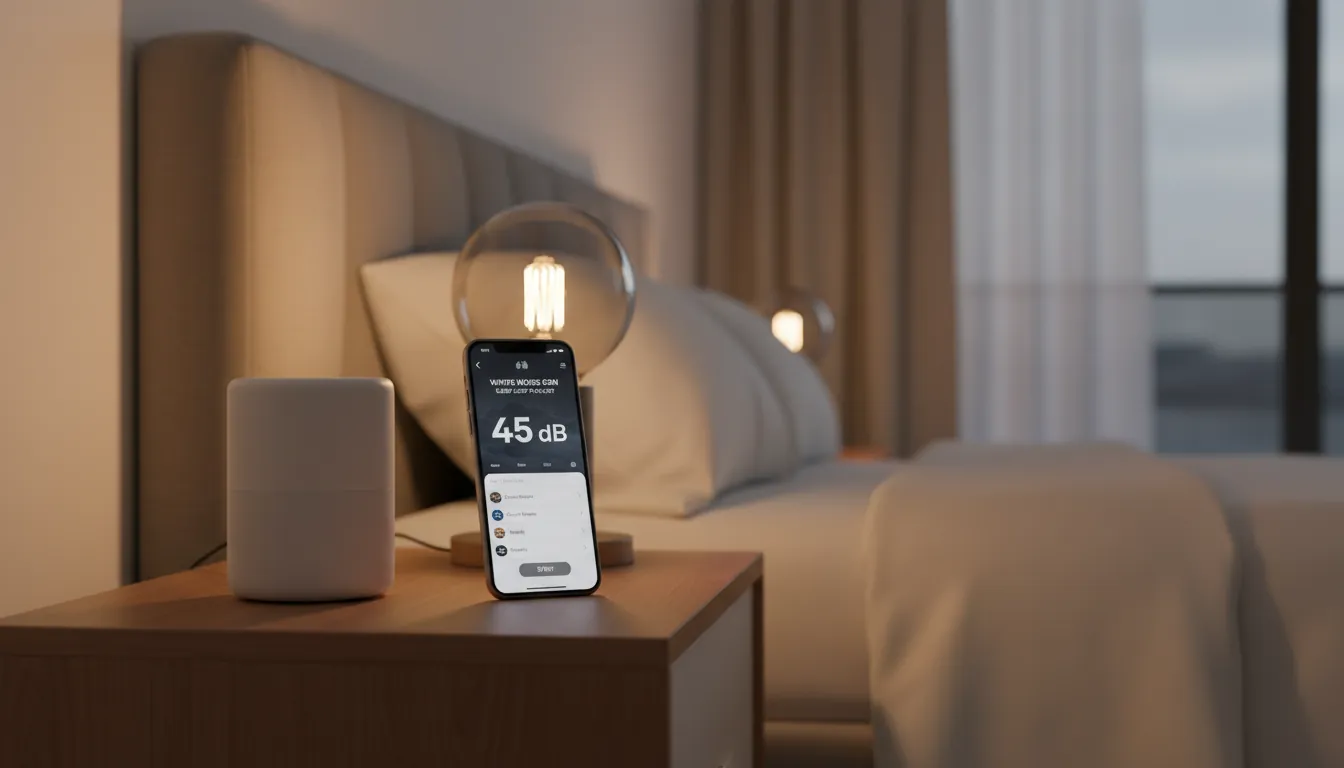
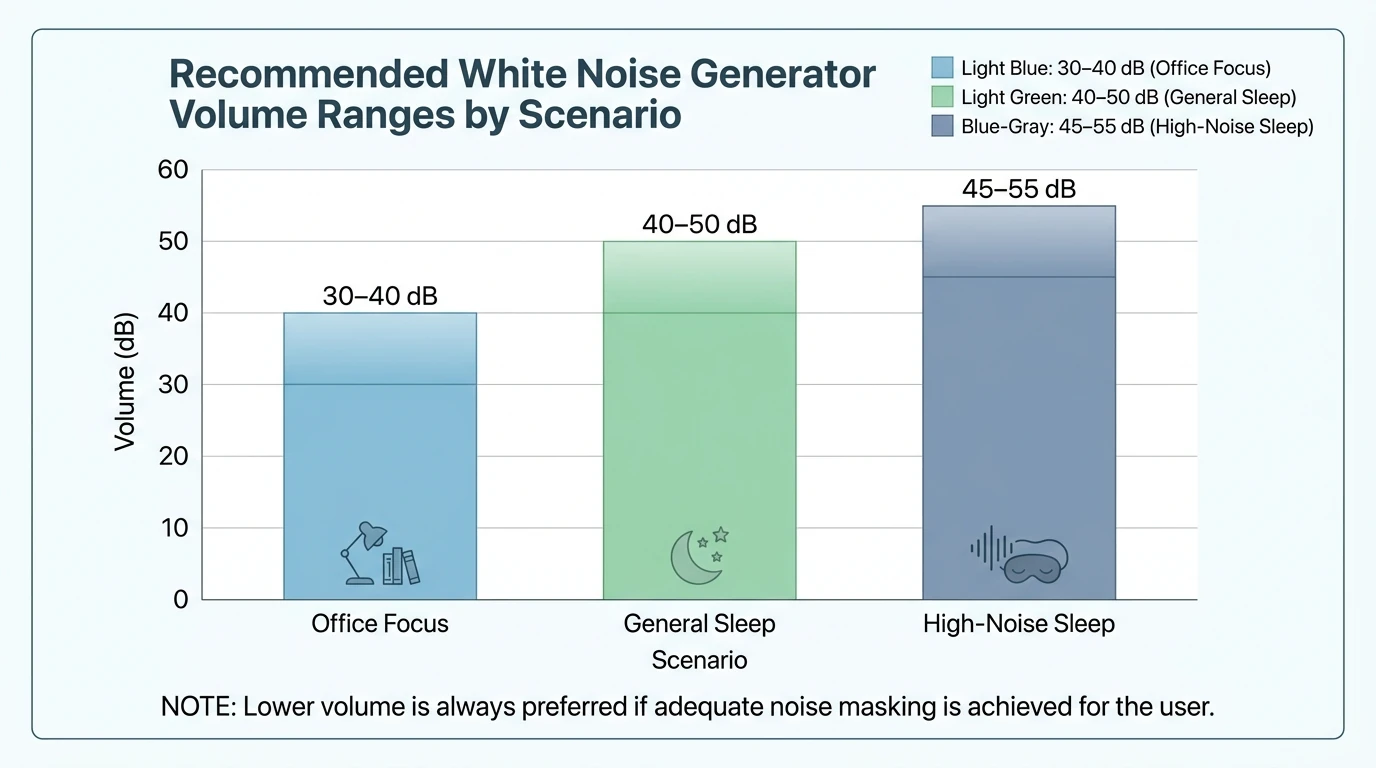
- Aim around 40-50 dB at the pillow area (often described as quiet conversation level). This range is commonly recommended in practical sleep guidance and aligns with real-world masking needs rather than "as loud as possible."
- Choose timer vs continuous
- If you wake up easily at 3 a.m., continuous is often better.
- If you sleep through the night once you're out, try 30-60 minutes.
- Lock in interruption protection
- Enable Do Not Disturb (or equivalent).
- If using an app, look for settings like Prevent interruptions, stable playback, or background audio support (varies by platform).
Best settings (sleep, focus, and studio use)
Best white noise gen settings for sleep
Use these as defaults, then fine-tune over 3 nights:
- Type: Pink noise first, then white noise if you need stronger masking.
- Volume: 40-50 dB near the bed (increase only if spikes still wake you).
- Speaker placement: between you and the noise source.
- Playback: continuous if you wake mid-sleep; otherwise 30-60 min timer.
- EQ (optional): if it's harsh, slightly reduce very high frequencies rather than turning it down so far it stops masking.
Real-world note: I've found many "too loud" complaints are really bad placement. Moving the speaker closer to the noise source often lets you drop volume while improving masking.
Best white noise gen settings for focus/work
- Type: white noise for maximum masking of speech; pink if you fatigue easily.
- Volume: lower than sleep; enough to blur voices but still hear calls/alerts.
- Timer: 25-50 minute focus blocks.
Best settings for production/sound design
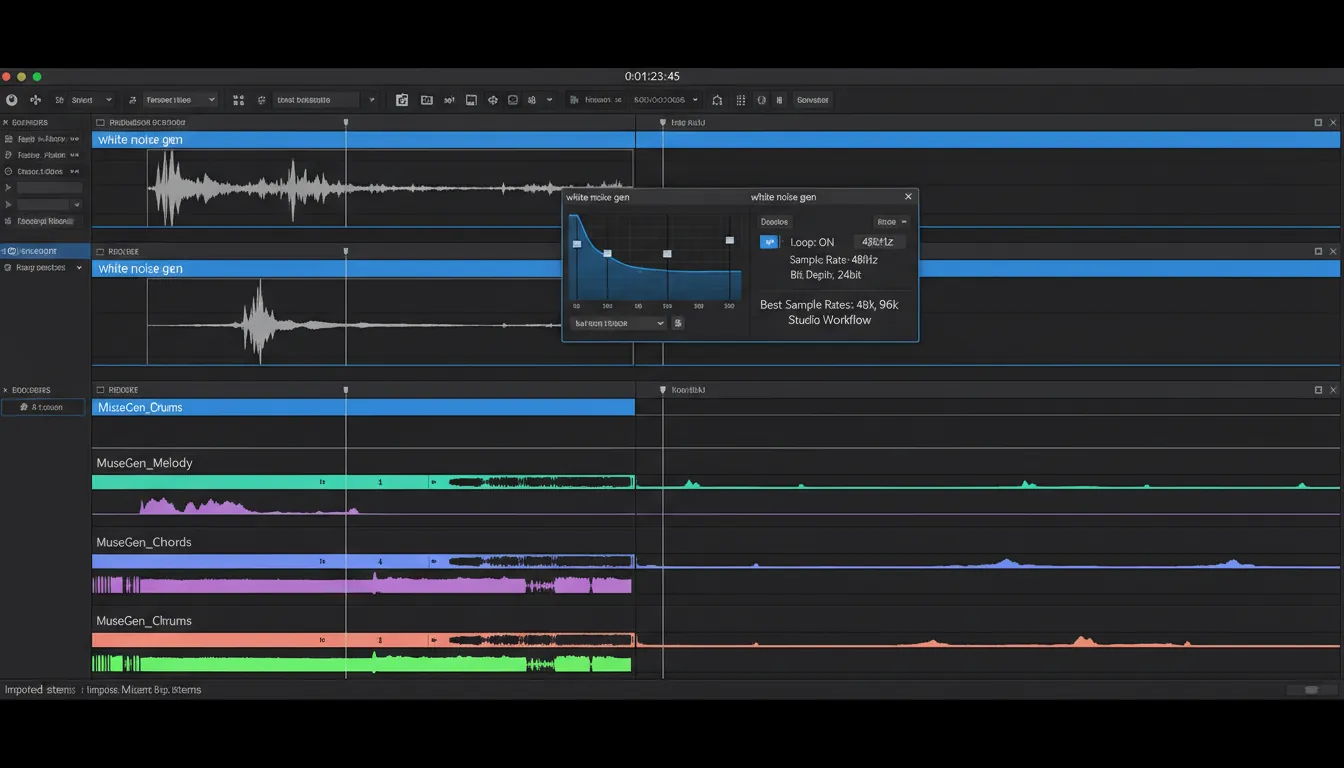
If you're generating noise inside a DAW (for risers, percussion layers, or ambience beds):
- Sample rate: 48 kHz minimum for video workflows; 96 kHz can be useful for heavy pitch-shifting and sound design, but costs CPU (common engineering guidance and production recommendations support 48 kHz minimum and 96 kHz as a preferred hi-res rate in many workflows).
- Level: generate at a conservative amplitude (avoid clipping and ear fatigue).
- Filtering: shape noise with high/low cuts for the role it plays in the mix.
Loops: How to make a white noise gen loop that doesn't click (and when not to loop)
A true generator (random noise) doesn't need looping - noise is continuous. But recorded noise files (or "sleep sound" tracks) often loop, and bad loops create clicks or obvious repetition.
Loop checklist (works for apps and DAWs)
- Use a loop tool/algorithm if available
- Some apps process recordings into seamless loops using dedicated looping algorithms (often described as "perfect loop" or similar features).
- Crossfade the loop point
- Add a short crossfade (50-200 ms) between the end and start.
- Avoid "events"
- If the sound has a bump, bird chirp, or bump of wind, you'll notice repetition.
- Prefer generated noise for pure masking
- For sleep masking, a generated signal is less likely to have loop artifacts.
Practical workaround for speakers that shut off
Some Bluetooth docks/speakers power down if they think "no audio is playing." A field-tested workaround is to run a playlist (even the same sound duplicated) with durations under the auto-off threshold and enable loop playlist so playback never stops.
Troubleshooting: Common white noise gen problems (and fixes)
1) "My white noise gen stops randomly"
- Turn off battery optimizations for the app.
- Enable background audio permissions.
- Disable aggressive Bluetooth auto-connect, or set a stable audio route.
- If available, try larger buffers or "multithreaded playback" settings (some apps include these to improve stability).
2) "I hear voices or patterns in the noise"
This is common when you're tired; your brain tries to find meaning in randomness (a well-known perception effect). Fixes:
- Reduce volume slightly.
- Switch from white to pink/brown noise (less "hissy").
- Use a different generator or filtered noise.
3) "It's hissy and annoying"
- Try pink noise, or apply a gentle high-shelf cut.
- Lower the speaker's treble enhancement / "clarity" mode if it has one.
- Move the speaker farther away and reduce volume.
4) "Loop clicks every few minutes"
- Use crossfade looping.
- Replace the file with a longer recording (30-60 minutes loops are harder to notice).
- Use an actual generator mode rather than looping audio.
5) "Volume is inconsistent across sounds"
- Normalize or level-match your playlists.
- If your app supports it, set separate volumes for alarm vs sound playback.
Recommended settings snapshot (copy/paste)
| Use case | Noise type | Volume target | Timer | Placement tip | Notes | | ------------------------------------- | -------------------------- | --------------------------- | ------------------ | ------------------------- | ------------------------------------- | | Light sleeper in a city | White or pink | 45-50 dB | Continuous | Between bed & window | Strong masking for traffic/voices | | Partner snores | White | 45-55 dB (lowest effective) | Continuous | Near the snoring side | Don't over-blast; use placement first | | Office focus | White or pink | 30-40 dB | 25-50 min blocks | Desk, aimed away from mic | Keep calls intelligible | | Baby/nursery (ask pediatric guidance) | Pink/brown often preferred | Low-moderate | Continuous or naps | Across room, not in crib | Keep volume conservative | | Sound design (DAW) | White/band-limited | N/A (meter in DAW) | N/A | N/A | 48 kHz+; filter to fit mix |
How MuseGen fits into a "white noise gen" workflow (creative + practical)
If you only need masking, a dedicated white noise gen tool is simplest. But if you're creating long-form ambient beds, branded soundscapes, or content-friendly "sleep/focus" tracks, MuseGen can help you produce studio-ready audio quickly, then you can layer controlled noise on top.
Here's how I use it in production:
- Generate an ambient track bed (no sharp transients).
- Add a noise layer (white/pink/brown) and filter it to avoid harshness.
- Export stems for precise control in mastering.
Useful starting points:
- Try the MuseGen AI Music Generator to create an ambient base.
- If your project needs vocals, use the AI Vocal & Lyrics Generator for safe, original toplines.
- For content workflows, the One-Click MV Generator can turn your audio into a simple video output.
White Noise Black Screen | Sleep, Study, Focus | 10 Hours
External references (for deeper reading)
- Looping, playlists, and playback stability settings: White Noise Support (TMSOFT)
- App documentation covering generator types, filters, and loop playlist: White Noise Help Guide PDF (TMSOFT)
- Developer approach to generating white noise safely on the audio thread: JUCE tutorial: Build a white noise generator
FAQ (white noise gen)
1) What's the best white noise gen setting for sleep?
Start with pink noise at ~40-50 dB near your pillow, continuous playback if you wake up at night, and place the speaker between you and the main noise source.
2) Should I loop white noise or generate it live?
If your tool supports true noise generation, generate it live. If you're using an audio file, loop it with a crossfade to prevent clicks.
3) Why does my white noise gen stop when my phone locks?
Battery optimization, Bluetooth route changes, and background app limits are common causes. Enable Do Not Disturb, disable battery optimization for the app, and try stability options like larger buffers if available.
4) Is white noise or pink noise better?
White noise masks high-frequency disturbances more aggressively. Pink noise is often more comfortable for long listening and can feel less harsh.
5) What volume should a white noise gen be?
Use the lowest volume that still masks disruptions; many practical sleep guides center around ~40-50 dB for bedtime use, adjusted for your room and noise spikes.
6) How do I stop hearing "voices" in white noise?
Lower volume slightly, switch to pink/brown noise, and avoid overly bright speakers. Your brain can pattern-match randomness more when you're drowsy.
7) What sample rate should I use if I'm making noise in a DAW?
48 kHz is a solid baseline (especially for video). 96 kHz can be helpful for sound design and heavy pitch shifting, but increases CPU load.
Conclusion: Make white noise gen boring (that's the point)
When white noise gen is dialed in, it fades into the background and your room feels steadier - like the world stopped slamming doors just to test you. Start with placement, keep volume moderate, and use continuous playback only if you actually need it. If you want to turn simple masking into polished, exportable ambient content, build the bed in MuseGen and add shaped noise as a controllable layer.