Switching From Suno to MuseGen: Migrate Your Prompt Library & Workflow Without Losing Your Sound

MuseGen Team
7/23/2026
You've built a whole creative rhythm around AI music — a folder of prompts that just work, a set of go-to styles, a routine for turning an idea into a finished track. So the thought of switching tools feels like starting over. It isn't. This guide walks you through moving from Suno to MuseGen the smart way: bringing your prompt library with you, rebuilding your workflow step by step, and keeping the sound you love — without losing a single idea along the way.
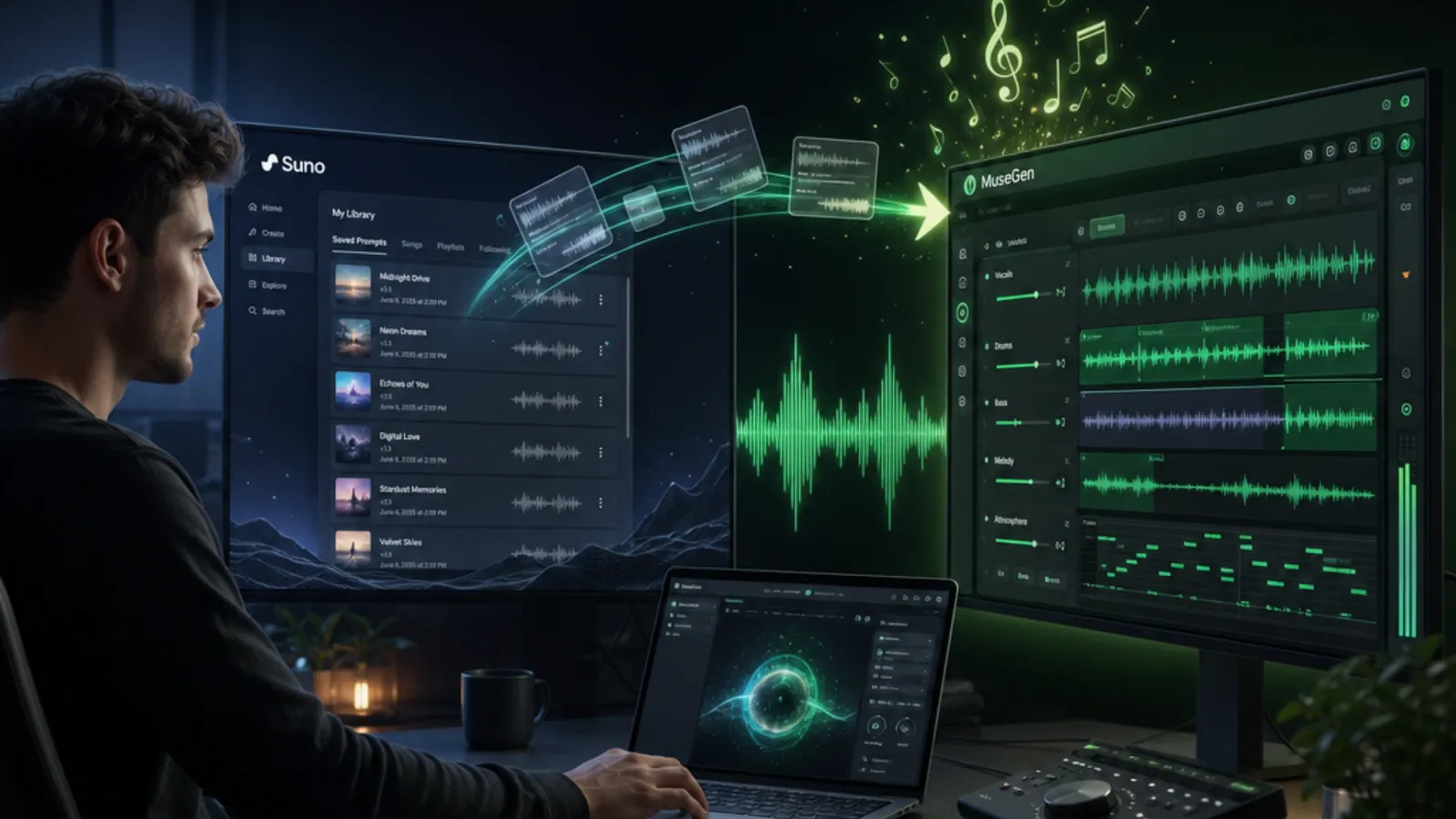
Why Creators Are Making the Switch
If you're reading this, you probably don't hate Suno — you've just hit a ceiling, or you're curious what else is out there. That's a healthy instinct. Here are the reasons creators tell us they move to MuseGen:
- They want free, built-in production tools. MuseGen bundles a Lyrics Generator, BPM Detector, and MP3-to-WAV converter alongside music generation — utilities you'd otherwise juggle across three tabs (WAV stem and MIDI export are on the roadmap, coming soon).
- They want deeper control after the first draft. Section re-arrangement, lyric extension, and instrumental mode let you keep shaping a song instead of re-rolling it.
- They want royalty-free peace of mind. Tracks are 100% royalty-free with unlimited storage and a daily free creation allowance.
- They want one place to finish and ship. Generate the song, spin up an AI music video, and export straight for X, Facebook, Telegram, and WhatsApp.
The best part: your existing skills transfer. A good prompt is a good prompt. Let's move your library over.
Before You Migrate: Take Inventory of Your Suno Setup
A clean migration starts with a quick audit. Spend ten minutes cataloging what you already have so nothing gets left behind.
What to export and save from Suno
- Your prompt library — copy every prompt, style description, and genre tag you reuse into a plain text doc or spreadsheet.
- Your lyrics — save the lyric sheets for songs you may want to remake or extend.
- Finished tracks you love — download the audio files you want to keep as references or re-import.
- Your "recipe" notes — the little tweaks you've learned (a BPM that always lands, a mood word that fixes a chorus). Those are gold.
Map your workflow into stages
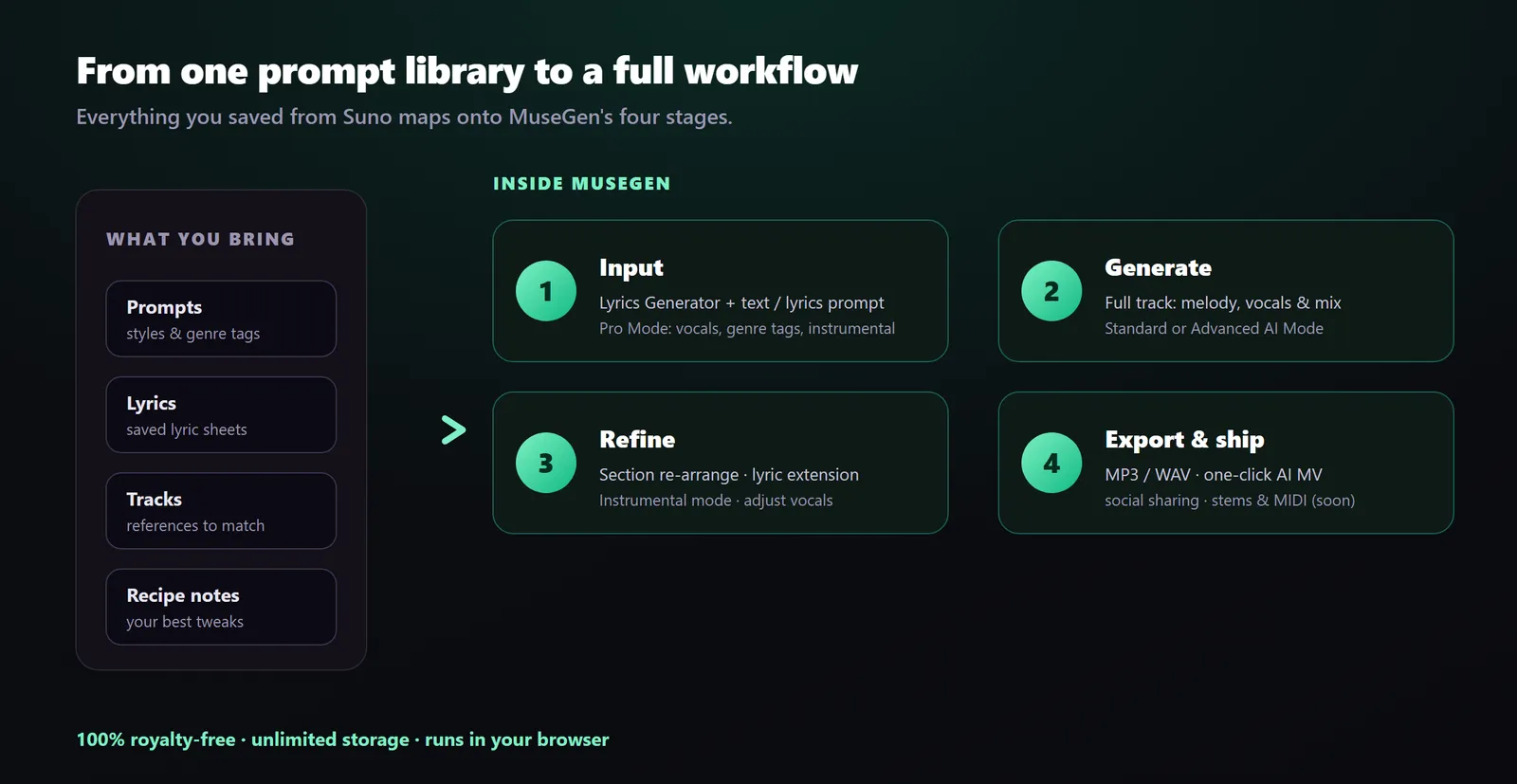
Most AI-music routines break into four stages. Naming them makes the switch effortless because you'll simply find MuseGen's equivalent for each:
| Your stage | What you do | MuseGen equivalent |
|---|---|---|
| 1. Idea & lyrics | Write or generate lyrics and a concept | Lyrics Generator + text/lyrics input |
| 2. Generate | Turn the prompt into a song | Music Generation (with Pro Mode) |
| 3. Refine | Fix sections, extend, adjust vocals | Section re-arrangement, lyric extension, instrumental mode |
| 4. Export & ship | Download and post | MP3/WAV export, AI MV, social sharing (stem & MIDI coming soon) |
How to Translate Your Suno Prompts to MuseGen
Here's the good news that saves the most time: you don't rewrite your prompts — you re-map them. Both tools speak the same underlying language of genre, mood, tempo, instruments, and vocals. MuseGen just gives you cleaner places to put each ingredient.
The five-ingredient prompt formula
Break any Suno prompt into these five parts, then drop each into the matching MuseGen field:
- Genre / style — e.g. "cinematic pop," "lo-fi hip-hop," "epic orchestral." MuseGen supports dual-genre fusion, so "flamenco + trap" works.
- Mood — "uplifting," "melancholic," "hype."
- Tempo — a BPM number lands more consistently than "fast/slow." Not sure? Use the free BPM Detector on a reference track.
- Instruments — the specific textures you want up front.
- Vocals — in Pro Mode you can set vocal gender, add your own lyrics with genre tags, or switch to instrumental-only.
Before & after: a translated prompt
Say your trusty Suno prompt was a single run-on line. Here's how it becomes a structured MuseGen prompt:
Suno (original): uplifting cinematic pop anthem, female vocals, big drums, strings, hopeful, fast
MuseGen (re-mapped): Genre: cinematic pop, anthemic · Mood: uplifting, hopeful, goosebumps build · Tempo: 124 BPM · Instruments: soaring strings, big stadium drums, bright piano · Vocals (Pro Mode): female lead, add your lyrics, powerful chorus
Same idea, more control — and a first draft that lands closer to what you heard in your head.
Step-by-Step: Rebuild Your Workflow in MuseGen
1. Create your MuseGen account & open the generator
Head to MuseGen and start a free account. Everything runs in your browser — no installs. Open Music Generation and you're ready to compose.
2. Paste in your first migrated prompt
Pick one reliable prompt from your saved library and enter it using the five-ingredient formula above. Toggle Pro Mode to customize lyrics, genre tags, and vocal gender, or enable instrumental-only mode with one click.
3. Generate, preview & compare to your Suno version
Hit Create and let MuseGen produce a full track — melody, harmony, rhythm, vocals, and mix. Generate two or three variations and A/B them against your old Suno reference. Small wording changes steer the result; keep the take whose chorus gives you chills.
4. Refine instead of re-rolling
This is where migration pays off. Rather than regenerating from zero, use section re-arrangement to fix a weak bridge, lyric extension to lengthen a verse, and instrumental mode to strip vocals for a clean edit. Shape the song you already have.
5. Export & ship everywhere
When it sounds right, export a royalty-free MP3 or high-quality WAV. Then generate a one-click AI music video and share straight to X, Facebook, Telegram, and WhatsApp. For producers who want to fine-tune in a DAW, WAV stem and MIDI export are coming soon.
Migration tip: don't move your entire library on day one. Port over your five most-used prompts first, get comfortable with MuseGen's fields and refine tools, then bring the rest across. You'll migrate faster and learn the platform in the process.
Suno to MuseGen: Quick Feature Map
Use this cheat sheet to find your footing fast. The goal isn't "which is better" — it's knowing where each part of your routine now lives.
| What you want to do | Where it lives in MuseGen |
|---|---|
| Generate a song from text or lyrics | Music Generation (Standard or Advanced AI Mode) |
| Write or brainstorm lyrics | Free Lyrics Generator |
| Set an exact tempo | Free BPM Detector |
| Choose vocal gender / go instrumental | Pro Mode toggle |
| Fix or rearrange sections | Section re-arrangement |
| Make a song longer | Lyric extension |
| Get high-quality audio | MP3 export, MP3-to-WAV converter |
| Edit in a DAW | WAV stem & MIDI export (coming soon) |
| Turn a track into a video | One-click AI MV Generation |
Common Migration Mistakes (and How to Avoid Them)
- Copy-pasting prompts blindly. Re-map them into the five ingredients instead — you'll unlock MuseGen's control fields and get better first drafts.
- Re-rolling when you should refine. Reach for section re-arrangement and lyric extension before generating from scratch; it's faster and keeps what already works.
- Skipping Pro Mode. That's where vocal gender, custom lyrics, genre tags, and instrumental mode live — the controls that make a track feel like yours.
- Forgetting to save references. Keep your favorite old tracks handy so you can A/B and confirm you're keeping the sound you love.
Conclusion: Bring Your Sound With You
Switching tools shouldn't mean throwing away everything you've learned. Your prompt library, your instincts, your workflow — they all come with you. Migrating from Suno to MuseGen is really just re-mapping what you already know onto a platform with more built-in tools, deeper refinement, and a straight path from idea to shareable video. Move five prompts today, and you'll wonder why the switch felt so intimidating.
Ready to make the switch? Bring your first prompt over and generate an original, royalty-free track in your browser — start creating with MuseGen.
Frequently Asked Questions
Can I import my Suno prompts directly into MuseGen?
There's no automatic import between the two platforms, but migrating is quick. Copy your prompts into a text doc, then re-map each one into MuseGen's five ingredients — genre, mood, tempo, instruments, and vocals. Because both tools use the same prompt language, most prompts work with only light adjustments.
Will my music sound the same after switching?
It won't be identical — every AI model has its own character — but you can get very close. Keep your favorite Suno tracks as references, A/B them against your MuseGen generations, and use Pro Mode plus the refine tools (section re-arrangement, lyric extension) to dial in the sound you love.
Is MuseGen music royalty-free and safe to post?
Yes. Tracks you generate with MuseGen are original and 100% royalty-free, so they're safe for YouTube, TikTok, reels, and shorts. Always review your plan's specific commercial-use terms, and keep any lyrics you add original.
Do I have to migrate my whole library at once?
No — and you shouldn't. Start with your five most-used prompts to learn MuseGen's fields and refine tools, then bring the rest across gradually. This makes the transition faster and less overwhelming.
What extra tools does MuseGen include that I might be juggling elsewhere?
MuseGen bundles a free Lyrics Generator, BPM Detector, and MP3-to-WAV converter, plus section re-arrangement, lyric extension, instrumental mode, and one-click AI music video generation — so you can write, produce, refine, and ship in one place. WAV stem and MIDI export are on the roadmap (coming soon).
Do I need production experience to switch?
No. MuseGen is built for creators with zero music background — you describe the song in plain language and the AI handles melody, harmony, rhythm, vocals, and mixing. The refine tools are simple, and the five-ingredient formula in this guide gives you a reliable starting point.