M4A to MP3 Converter
Convert M4A (AAC) to MP3 in your browser for players and apps that don't support M4A. No uploads needed.
M4A to MP3 for any player
How to Convert M4A to MP3
Turn an M4A file into MP3 in three quick steps.
Add your M4A file
Drag in an M4A file, such as a voice memo or a GarageBand export, or click to browse.
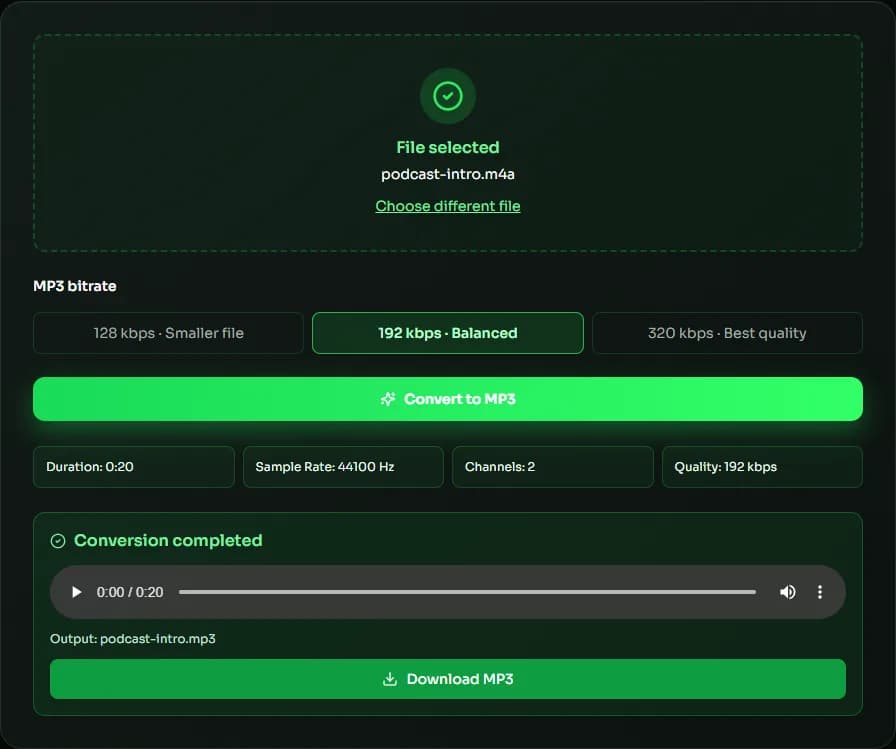
Choose bitrate & convert
Pick an MP3 bitrate and click convert. Decoding and encoding both happen in your browser.
Preview & download
Check the MP3 in the player, then download it.
Why convert M4A to MP3 with MuseGen?
Get the most compatible audio format from your M4A files, privately and for free.
Maximum compatibility
MP3 plays on virtually every device, including older players and car audio systems.
Pick the quality
Choose 128, 192 or 320 kbps to match your storage and listening needs.
No upload
Your M4A is converted on your device and never sent to a server.
No software needed
Works in modern browsers on desktop and mobile without plugins.
Great for voice memos
Turn iPhone voice memos into MP3 files that are easy to share or upload.
Free to use
Convert as many files as you need at no cost.
Explore music creation tools
Try more free tools for music analysis and songwriting.
M4A to MP3: Getting the Best Quality From a Lossy-to-Lossy Conversion
M4A (usually AAC) and MP3 are both lossy formats, so converting M4A to MP3 re-encodes audio that has already been compressed once. Done right, the difference is very small — and the MP3 will play on devices that don't understand M4A. Here is how to pick settings that keep the quality loss to a minimum.
Pick a bitrate at least as high as the source
Each lossy encode removes a little detail. To keep the second encode from adding noticeable artifacts, choose an MP3 bitrate equal to or higher than the M4A's: a 256 kbps AAC music file is best converted at 320 kbps, while a voice memo is fine at 128 kbps. Going higher than the source never adds quality back; it only makes the file larger.
Why convert M4A to MP3
Older car stereos, MP3 players, some smart speakers and many upload forms still only accept MP3. Converting M4A to MP3 is the simplest way to make voice memos, lectures and GarageBand exports playable everywhere and easy to share.
What the converter keeps
The M4A to MP3 conversion keeps the original sample rate whenever MP3 supports it (up to 48 kHz) and keeps mono or stereo as it is. Only DRM-free files can be converted; protected purchases and streaming downloads can't be decoded by the browser.
Voice recordings and mono audio
Many voice recordings are mono, meaning they have a single channel. A mono MP3 needs only half the data of a stereo one at the same quality, so 128 kbps is more than enough for speech. The converter keeps mono files mono, which keeps the MP3 small without any loss in clarity.
| M4A source | Typical AAC bitrate | Suggested MP3 bitrate |
|---|---|---|
| Voice memo or lecture | 64–128 kbps | 128 kbps |
| Podcast or audiobook | 96–128 kbps | 128–192 kbps |
| DRM-free music purchase | 256 kbps | 320 kbps |
| GarageBand or Logic export | 128–256 kbps | 192–320 kbps |
M4A to MP3 FAQ
Sources & further reading
The concepts, formats and algorithms behind this tool, with their original references.
- Advanced Audio Coding – Wikipedia — how AAC audio inside M4A files is encoded
- mp3 – Fraunhofer IIS — the origins of MP3 audio coding
- LAME MP3 Encoder — the LAME MP3 encoder that this tool's MP3 encoding is based on
- Web audio codec guide – MDN Web Docs — lossy vs. lossless audio codecs
Last updated:
