How to Use Udio: A Practical Walkthrough

MuseGen Team
10/8/2026
Udio has one of the deepest editing toolsets in this category, and it is the one you cannot walk away from with a file. Those two facts are connected, and both of them have to shape the way you work. The interface is built around a timeline you can cut into, extend and replace section by section, which is a genuine strength — and since the Universal Music Group partnership of October 2025, downloading of audio, video and stems has been disabled, so everything you make lives on the platform. This page is a walkthrough of the controls in the order you meet them: the prompt box, the clip length, the guidance tags, Manual mode and the seed, Styles, Voices, Sessions, and what each click actually costs. It is not a review, and it does not argue about whether you should be here. It assumes you already are.
What this walkthrough covers
The controls in the order you meet them, and the one constraint that reorganises all of them. Every tier limit and credit figure below is read from Udio's own pricing page and help centre, dated in the quick facts below so you can check it again yourself.
- Nothing leaves the platform. Udio's own note on the UMG partnership states that downloading of audio, video, and stems has been disabled. Plan the work as something that lives in your library, not as something you finish elsewhere.
- The unit of work is 32 seconds, not a song. The default clip is 32 seconds, the long option is 2 minutes 10 seconds, and anything past that is assembled with Extend rather than generated in one pass.
- Every click makes two songs, and you pay per song. A pair of 32-second songs costs two credits and a pair of 2:10 songs costs four. Artist Styles double it. Trimming costs nothing.
- Manual mode is where repeatability lives. It bypasses Udio's prompt expansion and uses only your exact tags, which is what makes the seed in Advanced Settings mean anything.
- Sessions is the reason to be on this tool. A timeline view where you extend and replace individual sections of a track you already have, with takes and an undo stack.
Quick facts
- Where you work: The prompt box on the Home page at
udio.com, or the Create page for the full form. - Clip lengths: 32 seconds by default; 2 minutes 10 seconds as the long option, chosen in the Clip Length section.
- Per click: Two songs. Two credits for a 32-second pair, four for a 2:10 pair, eight for a 2:10 pair from an Artist Style.
- Free tier ceiling: 10 credits a day and 100 a month with no rollover, and no more than three 2:10 generations per day.
- Paid-only controls: Edit, audio upload, Style Blending, Sessions, saved Voices, and more than three long generations a day.
- Downloads: Disabled — audio, video and stems alike — since 29 October 2025.
- Checked: 15 September 2026, from
udio.com/pricingand the Udio help centre.
Before anything else: nothing leaves
Most walkthroughs save the export section for the end. This one has to open with it, because on Udio the export section is a wall and every decision upstream of it changes once you know the wall is there.
Udio's help centre article on the changes associated with the Universal Music Group partnership sets out what happened. On 29 October 2025, Udio entered into a partnership with Universal Music Group. Alongside it, existing subscribers received a one-time grant of a thousand extra credits that do not expire, the Standard monthly credit allowance was raised from 1,200 to 2,400, the Pro allowance went from 4,800 to 6,000, and Pro subscribers were given the ability to create five sets of songs, ten songs, at the same time rather than four sets. The same note also contains the sentence that reorganises the rest of this page: downloading of audio, video, and stems has been disabled.
That is Udio's own wording and it is worth reading as written, because it is broader than people assume when they hear the word download. It is not a format restriction and not a quota; the audio, the video and the separated parts are all covered. The current pricing page reflects it: across all three plans and the whole comparison grid, the word download does not appear once. What you get instead is a considerably more generous credit allowance than the pre-partnership tiers offered, which is the trade the same announcement describes.
Two smaller boundaries belong here for the same reason, because both catch people out after the work is done rather than before. The first is that any song made from an audio upload, or stylised using a song that was itself made from an audio upload, cannot be published on Udio.com — so an upload-based track is private to you by design. The second is that there is no public API to route around the interface: Udio's own help page says it does not currently offer one and will update the document if and when it does.
What this changes about how you work: iteration becomes cheap relative to everything else, because there is no finishing step waiting at the end to reward a near-miss. If a section is wrong, you are not exporting it and repairing it in a DAW. You are fixing it here, in the tool, which is exactly what the rest of this walkthrough is about.
Whether that trade is worth making at all is a different question from how to operate the thing, and it is the one our Udio review spends its length on — the legal history, the plan pricing, and who the tool still suits. From here on this page assumes the decision is made.
Your first song, and the 32-second default
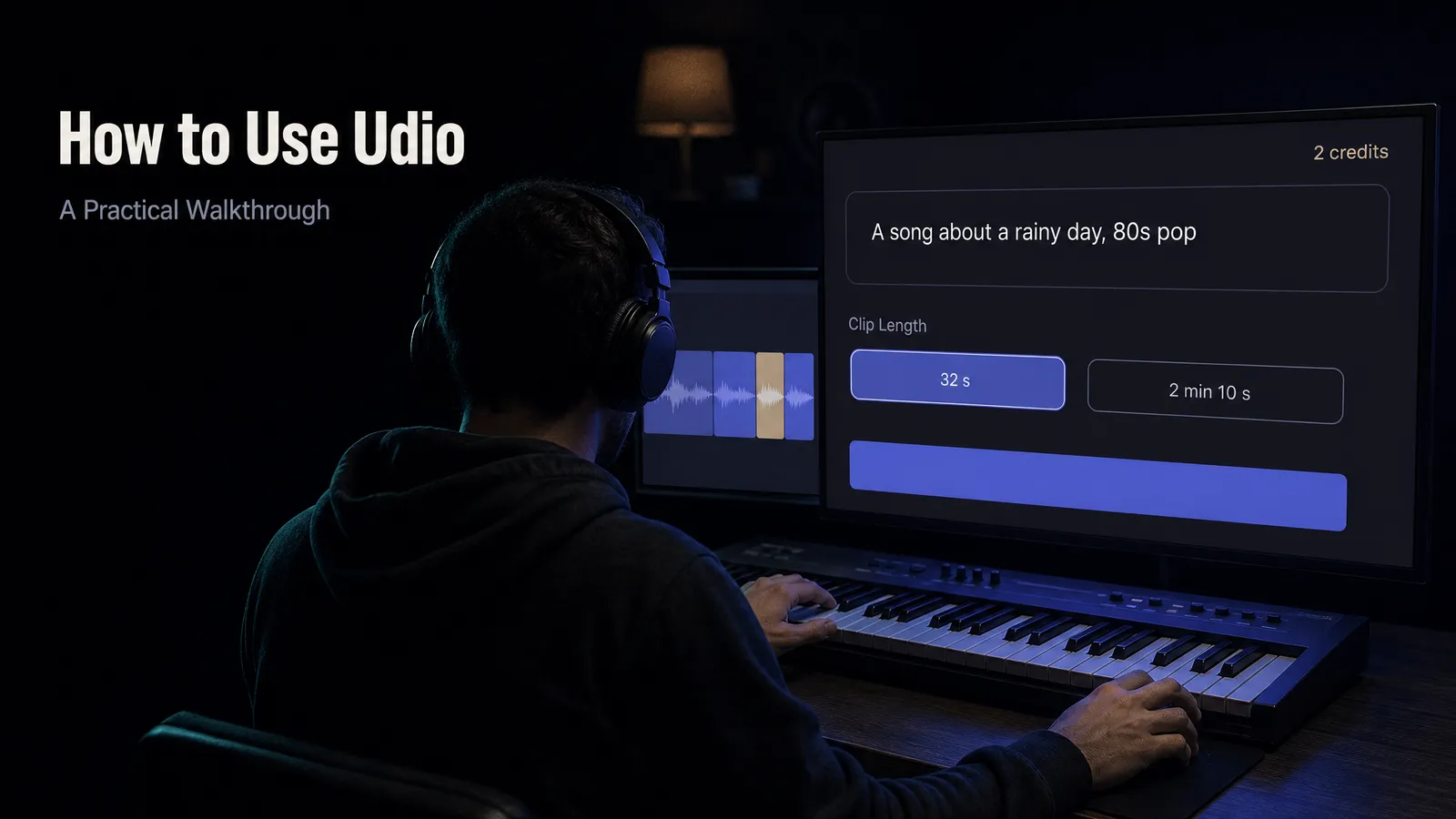
Sign in and the Home page puts a text box in front of you. Udio's own getting-started article tells you to type a short description of the song you want into it, and the two examples it gives are deliberately small: a song about New York, jazz; a song about a rainy day, 80s pop. A subject and a genre, nothing more. There is a dice icon beside the box that fills it with a random idea if you would rather see one than write one.
Press create and two songs come back, not one. That is not a bug or a bonus; it is the unit. Udio generates in pairs from every creative action, which is why the credit arithmetic later in this page is always expressed in pairs.
The setting nobody notices on the first run is length. Udio produces songs at either 2 minutes 10 seconds or 32 seconds, and the default is 32 seconds — which its own documentation describes as great for quick ideas. If you want the long one you select it in the Clip Length section before you generate. This single default explains most of the confusion new users report. A tool that hands you thirty-two seconds when you asked for a song looks broken until you realise it has handed you exactly what it meant to, and that a finished Udio track is something you assemble out of pieces rather than something that arrives whole.
The free-account catch on length: a free account is limited to three full-length 2:10 generations per day, regardless of how many credits it is holding. The 32-second clips are not capped that way. So on a free account the 32-second default is not merely the default, it is where the overwhelming majority of your work will happen, and learning to build with short pieces is not a workaround but the actual skill the tool asks for.
Before you go further, it helps to know the shape of the rest of the interface, because several controls discussed below are not on the page you started on. Udio documents six areas. Home holds the prompt box, a search bar, your latest creations, and the Spotlight, Staff Picks and Trending sections. Create is the full form with the advanced controls. Library holds everything you have made, with search and filters, favourites and playlists, and a trash bin. The Player persists across the whole site with shuffle, loop, a seekbar, like, add-to-playlist and share. Following tracks the creators you follow. And a Credits indicator shows what you have left, with the detail on hover — the one piece of interface furniture that will matter to you more here than on any comparable tool.
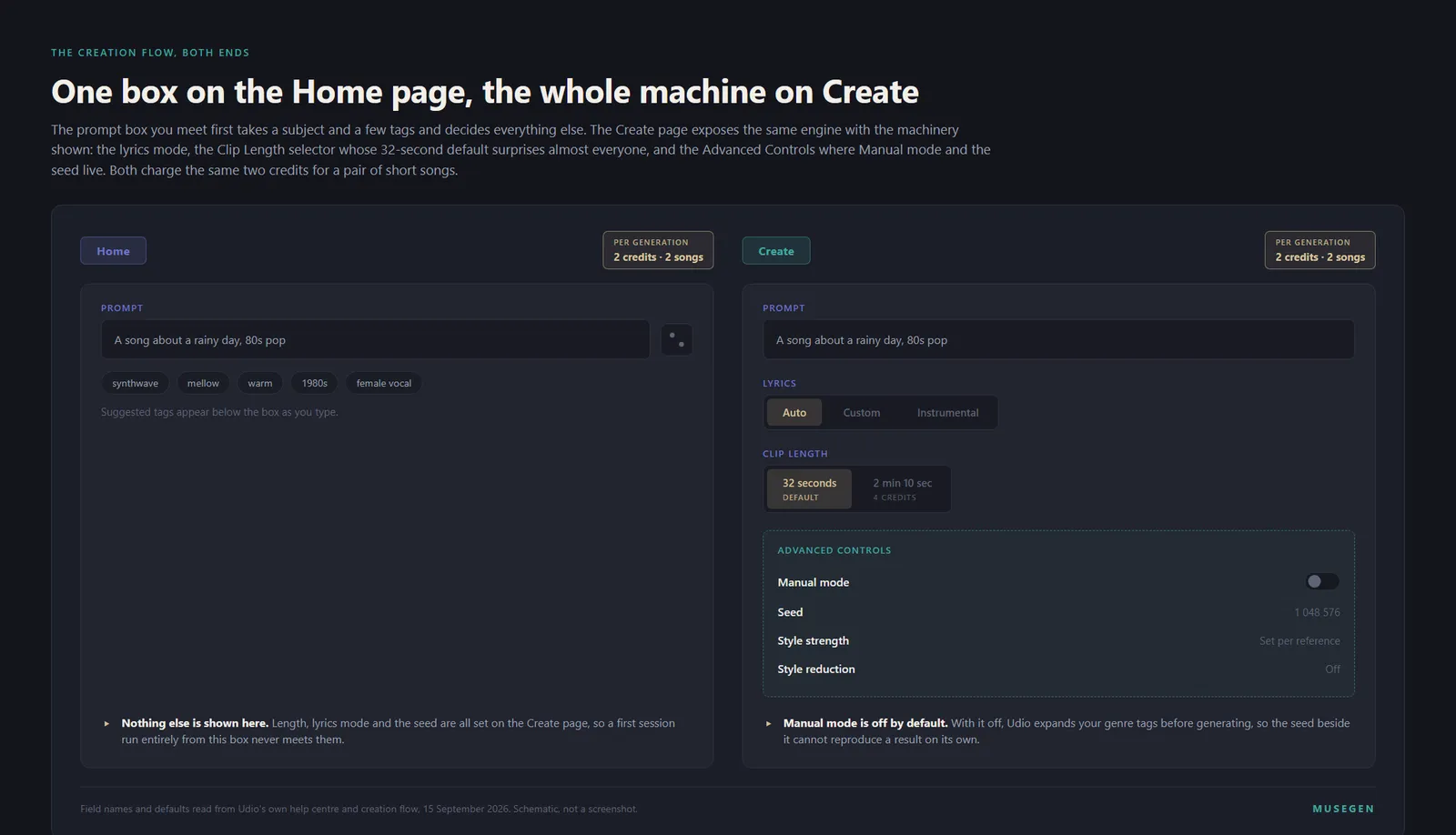
The box on the Home page and the form on the Create page are the same engine with different amounts of the machinery exposed. Everything this walkthrough covers after the next section lives in the right-hand panel, and the Clip Length default is the setting that surprises people first.
What a Udio prompt wants
Udio's guidance on prompting is more specific than most vendors bother to be, and it is worth following closely because it describes what the system actually parses rather than what sounds good in a tutorial. A strong prompt, in Udio's account, carries two things: a topic or free-form text, and genre or tags. Its own worked shape is a sentence about a subject followed by a short run of descriptors — a song about summer rain, then jazz, mellow, warm.
Below the text box Udio surfaces suggested tags as you type, and they are the fastest way to learn which descriptors the system recognises as tags rather than reading as prose. When you are stuck, Udio suggests asking yourself five questions about the track: mood, genre, tempo, instruments, theme. That is a serviceable checklist, and we have written a longer treatment of how to build a specification out of exactly this kind of material in The AI Music Prompt Formula, so rather than repeat it, the point worth isolating here is the Udio-specific one: this tool wants a subject and tags in a single field, not a separated style box, and the tags are the half that behaves predictably.
A prompt box, filled in
A song about missing the last train home, slow-burn soul, hazy, upright bass, brushed hats
A subject in plain words, then four tags and nothing else: a genre with a qualifier, a production character, and two instruments named precisely enough to be actionable. Keep this string byte-identical while you work through the controls below and change exactly one thing at a time — and note that in the default mode the string the model receives is not necessarily the one you typed, which is the subject of the Manual mode section two below.
Three of Udio's documented techniques are worth knowing because they are not obvious from the interface. Repetition is emphasis: Udio says that if you want to emphasise something, repeat the key words in your prompt. Era works as a tag, and naming a decade and a style together pulls in a whole production aesthetic in a way that describing it rarely does. And scene-based prompting — describing a place and a moment rather than a mood word — tends to produce more coherent lyrics than an adjective does, because it gives the lyric writer something to be about.
Artist names deserve their own paragraph, because Udio both supports the construction and warns you about it. Its documented style-reference form is a sentence about a subject, then tags, then the phrase in the style of followed by a name. The warning it attaches is explicit: Udio will not copy an artist's voice but will capture a similar musical feel. Read that as a statement about what the control is for. It is a way of naming a production and arrangement idiom compactly, and it is not a way of getting a particular singer. If what you actually want is one consistent voice across several generations, that is the Voices feature, and it works completely differently — see below.
- ✗ Prompt:
a really emotional song, beautiful, amazing production, hit single✓ Prompt:A song about leaving a city in winter, chamber pop, string quartet, close vocal, 70 BPM - ✗ Prompt:
jazz but no saxophone, definitely no saxophone✓ Prompt:late-night piano trio jazz, piano, upright bass, brushed snare - ✗ Prompt:
sounds exactly like [famous singer], same voice✓ Prompt:1960s soul ballad, in the style of [famous singer]· then set the voice with Voices
The middle row of that table is the one people argue with, so it is worth being precise about why. Udio does not document a negative-prompt field in the creation flow the way some tools do; what it documents instead is Style Reduction, an Advanced Controls setting for pulling back the influence of a style rather than for naming things to omit. Absent a field built to receive negatives, the reliable move is to specify the ensemble you do want tightly enough that there is no room left for the thing you do not. Naming an instrument in order to forbid it puts the word in front of a system that is reading your text as a description of the music.
One more control belongs in this section rather than a later one. If you want no vocals at all, Udio documents two routes: an Instrumental Mode, or instrument tags such as an acoustic guitar tag in the lyrics area. The first is the one to reach for, and the second is worth knowing because it is how the guidance-tag system in the next section handles the same request from the other direction.
Your own lyrics, and the slash key
The lyrics area has three states, and the useful one is the third. Left alone, Udio writes words to fit your prompt. Set to instrumental, it writes none. Set to Custom, it hands you an editor and sings what you put in it.
Inside that editor there is a button labelled Write for me, and it is better understood as a drafting partner than as a shortcut. You enter a description, click it, and Udio produces a lyric you can then regenerate, step backwards and forwards through, view the history of, and edit directly. The examples Udio gives for the description are instructive in how odd they are willing to be — walking on the beach under a sunny rain, synthwave, edm; my friend always tries to outdo me, rock opera; I found a coin dropped by my favourite anime character, j-pop. The pattern is a situation, not a feeling. A situation gives the lyric a narrator, a place and something that happens; an adjective gives it nothing to do.
Now the control that most Udio users never find. Press the forward slash key inside the lyrics box and Udio shows a selectable list of guidance tags — the square-bracket structural markers that tell the model what kind of section is coming next. There are twenty-nine of them in the documented list, and they fall into recognisable families: the ordinary song sections, the approach-and-release markers that electronic arrangements need, and a few performance directions.
- Sections. Intro, Verse, Pre-chorus, Chorus, Post-chorus, Hook, Pre-hook, Post-hook, Refrain, Pre-refrain, Bridge, Outro.
- Arrangement moves. Build, Drop, Pre-drop, Break, Breakdown, Interlude, Instrumental, Instrumental Break, Instrumental Bridge, Solo, Sample.
- Performance and voicing. All, Ensemble, Choir, Spoken Word, Announcer.
Two things about that list matter more than its contents. The first is Udio's own framing of what the tags are: we humans give guidance and suggestions, it says, and the AI makes the ultimate decisions. The second is the caveat it attaches immediately afterwards — this is not an exhaustive list, much less a list of hard-coded commands. Both sentences point the same way. A guidance tag raises the probability of a structural move; it does not instruct the arrangement. If you have written a build and a drop and got neither, the tag is not broken and there is no correct spelling that would have worked. Reach for a different control instead, which in practice means Sessions.
Alongside the structural tags, parentheses are documented for backing vocals, and there is a small family of pronunciation fixes that solve a problem every one of these tools has. Udio documents three. Split a word into syllables with hyphens when the stress lands wrong. Spell an acronym phonetically when it is being read as a word. And use accented characters to shift stress between the noun and verb forms of the same spelling — its own example is the difference between a record you own and a record you set.
Where to spend your editing time: pronunciation fixes are worth making before you generate, because they are cheap and deterministic. Structural tags are worth writing but not worth re-rolling over, because they are probabilistic by Udio's own description. If the structure is wrong and the sound is right, that is a Sessions problem, not a lyrics problem.
Manual mode and the seed
This is the section that separates people who get repeatable results out of Udio from people who do not, and it rests on a fact the interface never tells you: in its default state, Udio rewrites your prompt before generating from it.
Udio calls the behaviour prompt expansion, and its own model-updates page is where it is described most plainly, in the course of explaining why your results might vary. Consider using manual mode, it says, because this bypasses the genre-tag prompt expansion. Its prompting guide describes the same mode from the other side: manual mode uses only exact tags, no free text, is best for custom lyrics, and avoids automatic refinements — with the honest trade-off attached, that the mode keeps things precise but lyrics may be more generic.
That trade is the whole decision. Prompt expansion is a helpful system doing work on your behalf, and most of the time it improves a thin prompt. It is also the reason a prompt you copied character-for-character out of a guide produced something unrecognisable, and the reason your own A/B test between two settings told you nothing. If you are learning what a control does, the input has to be a constant, and in the default mode it is not one.
Manual mode is also what makes the seed meaningful. Udio's model-updates page sets out both the claim and its limit in the same breath, and both halves should be quoted. With identical prompts, settings, and seeds in Advanced Settings, it says, you will get identical outputs. Then the asterisk: this is how Udio works today, and it cannot promise that matching prompt, setting and seed input will forever produce identical outputs. The same page is refreshingly blunt about why this needs saying at all — model training happens in batches, and generative systems are stochastic.
The one experiment worth running on your first paid day: write one prompt as exact tags, switch Manual mode on, note the seed, and generate the same thing twice. Then change a single tag and generate again. Three generations, six songs, six credits at 32 seconds — and at the end of it you know what your tags do, which no amount of re-rolling in the default mode will teach you.
One more Advanced Controls item belongs here because it is routinely confused with a negative prompt. Style Reduction is Udio's documented way to control style influence — it pulls back how strongly a style pushes on the result. It is a dial on the reference, not a list of exclusions, and it becomes considerably more useful once you are working from an actual audio reference rather than from text, which is the next section.
Showing instead of describing
Styles is Udio's answer to the limits of describing music in words: instead of naming a production aesthetic, you point at a recording that has it. The core Styles experience is available to all Udio creators, and there are four things you can point at — one of your own Udio songs, somebody else's Udio song, an audio file you upload, or an entry from the Style Library.
The technical detail that changes how you choose a reference is the context window. Udio reads a 32-second window of the reference, and if your reference song is longer than that you can optionally mouse-drag the highlighted portion to choose which 32 seconds it reads. This is a real decision and not a formality. Point it at the intro of a track and you get the intro's character; point it at the second chorus and you get the arrangement at its densest. Alongside it sits a Style Strength control, which does what its name says, and which pairs with the Style Reduction setting from the section above.
Uploads carry rules, and they are the sort that are easier to read before you build an afternoon of work on top of them. You must have the rights to any audio you upload. And any song made from an audio upload — or stylised via any song that was itself made from an audio upload — cannot be published on Udio.com. That restriction propagates, which is the part people miss: it follows the lineage, not just the first generation. Udio's own guidance on what works is equally direct. Your own instrument recordings, original music you made in any software, and recorded natural sounds are fine. Commercial or copyrighted tracks and anything you do not hold the rights to are not. And a cappella vocals sit in a third category it describes honestly — not prohibited, but not likely to work well at the moment.
The Style Library is the browsable end of the same feature, organised into Discover, Udio, Artists, Your Styles and Recently Used. You heart a style to save it, click the plus to use it, filter with the magnifying glass, and edit your own from a three-dot menu. The Artists section is a set of styles crafted by professional musicians, and Udio's launch example is the Dream Theater keyboardist and composer Jordan Rudess.
Artist Styles cost double, and the arithmetic is worth memorising: Udio states that artist styles are a subscriber-only feature and use twice the credits per generation — a pair of 32-second songs made from an Artist Style costs four credits, and a pair of 2:10 songs costs eight. That is the most expensive routine action in the tool, so it is the one to run last, after you have settled the prompt and the structure on ordinary generations.
Two access limits round the feature out. Style Blending — combining references — is a subscriber feature, and both blending and the Style Library are documented as desktop and laptop only, which means an afternoon of reference work is not something to start on a phone.
Keeping one singer
Voices is the feature people reach for when they have five generations that all sound like different artists and want them to sound like one, and it is the feature whose limits are most often discovered the hard way. So the limits come first.
Udio is explicit that you can only use voices from the Voices library or from native Udio songs. You cannot upload your own voice as a source at this time, and you cannot use a voice taken from a Udio song that is associated with uploaded audio. That last clause is the upload lineage rule again, showing up in a second place. Voices is also documented as a web feature, including mobile web, and specifically not available in the iOS app.
Within those limits there are two places to use it, and they are for different jobs. The Playground is the low-commitment one: all members can create mashups pairing a Voice with a Style there, and a dice icon will pair one for you at random. What you cannot do in the Playground is specify the exact lyrics you want — for that you have to go through the Create flow. So the Playground is for auditioning a voice, and Create is for using one.
In the Create flow you toggle Voice Control on, drag a voice into the drop region or click the plus to add one, and optionally set a strength value. Subscribers can go further and use advanced and customised Voice options, including with their own songs. There is one interaction worth knowing before it surprises you: if you create a song from a Style rather than from a text prompt, you cannot have Udio auto-generate the lyrics while also using one of your own songs as the voice reference. Bring your own words to that combination.
The practical sequence: audition in the Playground until a voice fits the material, then rebuild the song in Create with that voice, your own lyrics and a fixed seed. Doing it in the other order — writing the song first and hunting for a voice afterwards — costs you a full regeneration each time you try a candidate.
Building the song in pieces
Everything so far has been about the first thirty-two seconds. This section is about the other four minutes, and it is where Udio's toolset goes deepest.
Start with the plain version of the feature. Extend adds new material to a song you already have, with the original prompt pre-filled so the continuation inherits its character. You choose where the new part goes — before or after, as an intro or an outro, or by cropping first and extending from the cut — and Udio lets you extend up to ten sections in total. Leave the lyrics blank on an extension and you get an instrumental passage, which is how you put a solo or a breakdown into a track that was otherwise all verses. You can also extend songs made by other people, building on their ideas from where they stopped.
Alongside it, Remix takes an existing song and produces a variation. The control that matters is a Variance slider: low values stay close to the original, high values depart from it. Udio flags one non-obvious consequence — if you want different lyrics out of a remix, you may need to set Variance higher before the change takes effect. And on any song of 32 seconds or longer, an additional Model option appears in Advanced Controls letting you remix the whole track or only a specific section.
Trim is the one free action in the whole tool, and it is also non-destructive. Open the song from your Library, go to Song Details, choose Trim, drag the left and right handles, and confirm. Your original song is untouched; the trimmed version appears in the Library with a small scissor icon beside it. Trimming a song does not cost any credits, which makes it the right first move whenever a generation is good except for its ending.
Edit is the paid counterpart to all of that. Udio documents it as available only to paid subscribers and to creators trialling a subscription. From the Library you select a song, choose Edit, and then either Replace Section or Edit Lyrics; you highlight the part you want with the selection tool, modify it, and click Edit.
And then there is Sessions, which is the same set of ideas given a timeline. Udio describes it as its timeline editing view, available to all paid subscribers, with a Styles-within-Sessions capability in experimental early access for Pro subscribers. You can only directly edit songs that you created yourself.
Inside a Session there are two modes. Extend mode lets you pick an intro, a middle section or an outro, optionally trim it, and click the extend button to grow the track from there. Replace mode is the one worth learning properly: you highlight a region of the waveform, drag its edges to get the boundaries right, and click Replace, and Udio regenerates only that region. A lyrics panel beside the waveform shows the words belonging to the highlighted section, clicking a word starts playback from there, and the lyrics are editable in place before you commit the replacement. So the workflow for a track with one bad verse is to find the verse, fix the words, and replace that region — not to regenerate the song and hope.
Two supporting mechanisms make that safe to do. Every replacement returns two takes you can toggle between, and there is an undo button along with the standard keyboard undo. Udio also documents single-key shortcuts — R for replace mode, E for extend mode, and the spacebar for play and pause — which are the difference between this feeling like a timeline and feeling like a form. Everything you make inside a Session is saved automatically under a Sessions entry in your library, so the intermediate states are not lost.
The credit rule inside Sessions is the one place where a tool like this could have surprised you and does not: extensions and replacements made within Sessions use credits in exactly the same way as they do outside it. There is no premium for working on the timeline and no discount either.
Udio published its own walkthrough of the feature three days after launching it, and if you would rather watch a timeline being operated than read a description of one, that is the sensible place to start. It is the vendor's video, made to show the feature at its best, and it should be read in that light.
▶ Watch on YouTube: "How to Udio: Sessions" — the vendor's own 9-minute walkthrough, published 29 June 2025, three days after Sessions launched
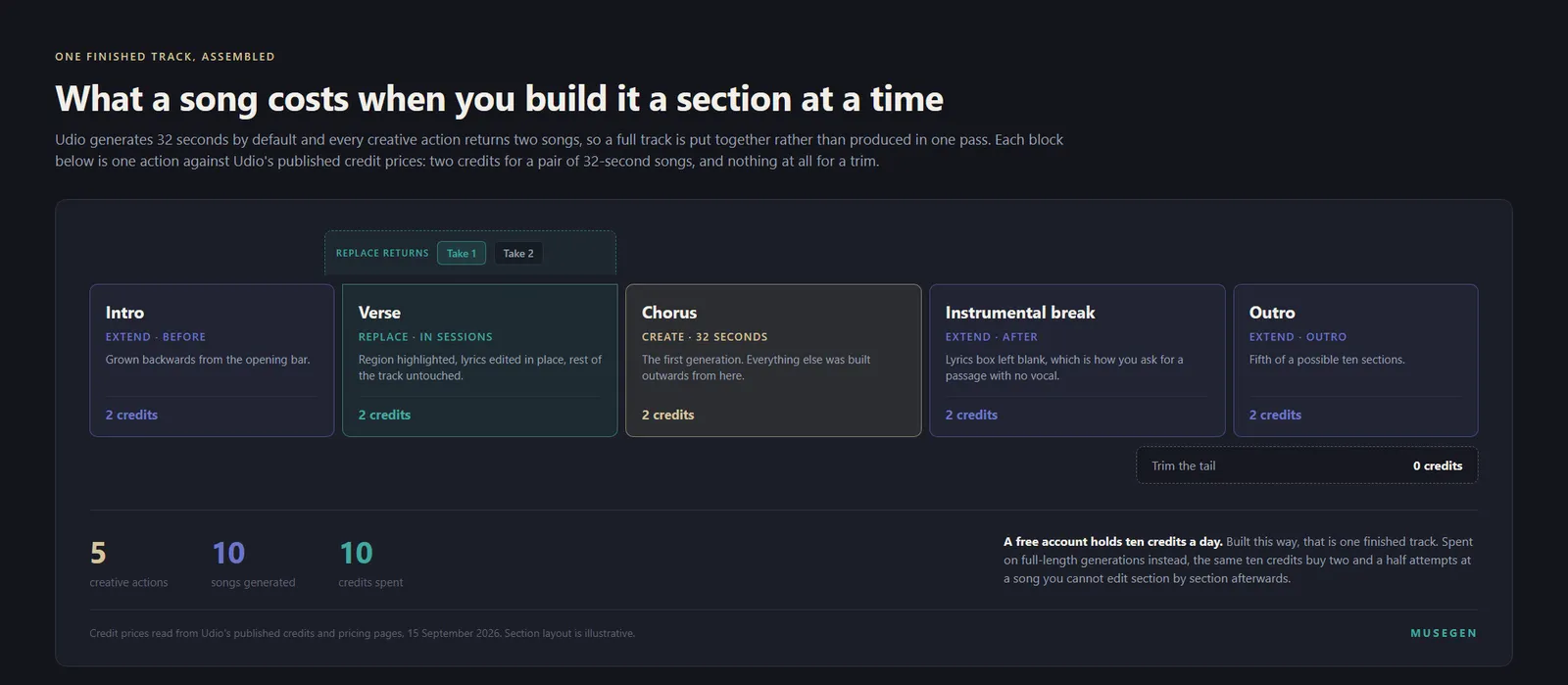
What a finished track actually costs, action by action, when it is assembled rather than generated. The two-takes bracket over the replaced verse is the part that has no equivalent in a re-roll workflow: you are choosing between alternatives for one section while the rest of the track holds still.
What each action costs
Credits on Udio are spent per song rather than per click, and since every creative action returns two songs, the numbers people quote are usually half of what they will actually pay. Udio's own credits article sets it out directly: every time you click Create, Extend, Remix, Inpaint or Edit, two new songs are created.
- A pair of 32-second songs costs two credits — one credit for each song. This is the cheapest way to test anything.
- A pair of 2:10 songs costs four credits — two credits for each song. Twice the length, twice the price, and on a free account also one of only three such generations available that day.
- An Artist Style doubles both figures — four credits for a 32-second pair, eight for a 2:10 pair.
- Trimming is free. It is the only listed action that costs nothing.
- Sessions work costs the same as the equivalent work outside Sessions. Extends and replaces are priced identically either way.
The allowances those costs draw against are worth stating once, in the form that affects planning rather than purchasing. A free account carries an allotment of ten daily credits plus a separate monthly limit of one hundred, and neither rolls over. Standard carries 2,400 a month and Pro 6,000, both also without rollover. The daily ceiling is the one that shapes a free workflow: ten credits is five pairs of 32-second songs, which is a real afternoon of iteration if you spend it on short clips and almost nothing if you spend it on long ones.
Three further rules catch people out at the edges. Purchased top-up credits, bought a la carte, never expire — unlike the monthly allowance, which does. If a subscription ends, through cancellation or a failed payment, the account reverts to free-account credit limits, so a lapsed subscription is not a paused one. And a trial is not a preview of the credit allowance: Udio states that trials keep the free-tier credit limits and the three-per-day cap on long generations, while unlocking the features — Voice Control, editing, audio upload, style references, custom cover art, and up to six simultaneous generations. The feature set is the trial; the credits are not. The full plan comparison, and the question of which tier is worth paying for, belong to our Udio review rather than here.
A planning rule that follows from all of the above: settle the prompt at 32 seconds, settle the structure at 32 seconds, and only then spend a long generation. A 2:10 pair costs what a full A/B/C test at short length costs, and on a free account it also spends one of three daily chances. The tool is priced to reward exactly the assemble-from-pieces workflow its Sessions view is built for.
The short version: treat Udio as an editor rather than a generator. Make short pieces, fix them in place with Replace rather than re-rolling, use Manual mode and a fixed seed whenever you are trying to learn what a control does, and keep in mind throughout that the finished thing stays where you made it.
Taking the song beyond Udio, with MuseGen
Everything above is a way of working well inside a room you cannot carry anything out of. That is a real trade and for a lot of work it is an acceptable one — a sketch, a private demo, a reference you are going to replay rather than deliver. It stops being acceptable at the exact moment somebody else needs the audio: a client, an editor, a video timeline, an upload form with a file picker on it.
That is the gap MuseGen is built around. Its song maker reads the same kind of specification you have been writing on this page — a subject, a genre, a tempo, an instrument or two, a production character — and on a paid plan you download the finished track as MP3 or WAV. If the destination is a video rather than a player, music video generation takes it the rest of the way in the same place.
The habit this walkthrough teaches, repairing a section instead of rerolling the whole song, works there too. Edit song section lets you pick a span of 7 to 60 seconds, give that part new lyrics, and choose between two regenerated versions — the same idea as Replace above, without the timeline view.
So the dividing line is simple. If your Udio work never needs to leave Udio, the walkthrough above has everything you need. If it has to end up in someone else's hands, make that part where the export step exists.
FAQ
How do I make my first song on Udio?
Sign in at udio.com and type a short description into the text box on the Home page. Udio's own examples are deliberately small, naming a subject and a genre: a song about New York, jazz, or a song about a rainy day, 80s pop. There is a dice icon beside the box that fills it with a random idea. Press create and two songs come back, because Udio generates in pairs from every creative action. By default they will be 32 seconds long; if you want the longer format you select 2 minutes in the Clip Length section before generating.
Why is my Udio song only 32 seconds long?
Because that is the default. Udio generates songs at either 32 seconds or 2 minutes 10 seconds, and 32 seconds is what you get unless you change the Clip Length setting before creating. Udio describes the short format as good for quick ideas, and the credit pricing follows the same logic: a pair of 32-second songs costs two credits against four for a pair of long ones. Free accounts are additionally limited to three of the 2:10 generations per day regardless of how many credits they hold. Longer tracks are built with Extend rather than generated in a single pass, up to ten sections in total.
How do I get the same result twice in Udio?
Turn on Manual mode and fix the seed. In its default state Udio applies what it calls prompt expansion, rewriting your genre tags before generating, which means the input is not the string you typed and no two runs are strictly comparable. Manual mode uses only your exact tags, no free text, and bypasses that expansion; Udio warns that it keeps things precise but that lyrics may come out more generic. With Manual mode on, Udio states that identical prompts, settings and seeds in Advanced Settings will produce identical outputs, while noting that this describes how the system works today rather than a permanent promise.
What do the square-bracket tags in Udio lyrics do?
They mark the kind of section that is coming next, and you insert them by pressing the forward slash key inside the lyrics box, which brings up a selectable list. Udio documents twenty-nine of them, covering song sections such as Verse, Chorus, Pre-chorus and Bridge, arrangement moves such as Build, Drop, Breakdown and Instrumental Break, and performance markers such as Choir, Spoken Word and Announcer. Udio is careful about what they are: humans give guidance and suggestions, it says, and the model makes the ultimate decisions. It also states that the list is not exhaustive and not a set of hard-coded commands, so a tag raises the odds of a structural move rather than instructing one.
What is the difference between Styles and Voices in Udio?
Styles control what the music sounds like and Voices control who is singing. A Style is a reference you point at instead of describing: one of your own Udio songs, somebody else's, an audio file you upload, or an entry from the Style Library, with Udio reading a 32-second window you can drag to choose. Voices is a separate feature for holding one singer constant across generations, and it is more restricted: you can only use voices from the Voices library or from native Udio songs, you cannot upload your own voice, and it is not available in the iOS app. Naming an artist in a prompt does neither reliably; Udio states it will not copy an artist's voice but will capture a similar musical feel.
How do I fix one bad section without regenerating the whole track?
Use Replace inside Sessions, Udio's timeline editing view, which is available to paid subscribers. Open the song in a Session, switch to replace mode, highlight the region of the waveform you want changed, drag the edges until the boundaries are right, and click Replace. A lyrics panel beside the waveform shows the words belonging to the highlighted section and lets you edit them in place first. Each replacement returns two takes you can toggle between, and there is an undo button as well as the standard keyboard undo. Everything you do inside a Session saves automatically under a Sessions entry in your library, and replacements cost the same credits there as the equivalent action outside.
How many songs can I make on the Udio free plan in a day?
Ten credits a day, with a separate monthly ceiling of one hundred, and neither rolls over. Since a pair of 32-second songs costs two credits, that is five pairs a day at the short length, or ten songs. Long generations cost four credits a pair, and free accounts are capped at three 2:10 generations per day on top of the credit limit, so the daily allowance cannot be spent entirely on long tracks. Udio also caps simultaneous generation on the free tier. Purchased top-up credits do not expire, unlike the monthly allowance.
Can I upload my own audio to Udio?
Yes, on a paid plan. Audio upload is documented as a paid-subscriber feature, reached from an upload button at the top right, and an uploaded file can be used for Extend, Inpaint, Session, Remix or Style. Udio requires that you hold the rights to anything you upload, and lists your own instrument recordings, original music made in any software, and recorded natural sounds as suitable, while excluding commercial and copyrighted tracks. One consequence is easy to miss: any song made from an audio upload, or stylised using a song that was itself made from an upload, cannot be published on Udio.com, and a voice taken from such a song cannot be used with Voices.
Related reading
- Udio Review 2026 — the other half of this page: the UMG history, the plan pricing, the pros and cons, and who the tool still suits.
- How to Use Suno AI — the same walkthrough for the other major tool, including the export section this one could not write.
- The AI Music Prompt Formula — how to build the specification that goes in the prompt box, slot by slot.
- Suno Download Limits — what happens when a tool you rely on changes its export rules, and what to do about it.
- The AI Music Generator Benchmark — how the export question this page keeps hitting plays out across ten engines.
Sources
- Udio — Changes associated with the Universal Music Group (UMG) partnership for the 29 October 2025 date, the disabling of audio, video and stem downloads, the one-time thousand-credit grant, the raised Standard and Pro allowances, and the increase to five simultaneous sets for Pro.
- Udio — Credits and credit limits for the two-songs-per-action rule, the two- and four-credit pair prices, the free daily and monthly limits, the no-rollover rule, the non-expiring a la carte top-ups, and the reversion to free limits when a subscription ends.
- Udio — Pricing for the per-tier credit allowances, the simultaneous generation limits, the three-per-day cap on full-length generations for free accounts, and the absence of any download entry across the whole plan comparison.
- Udio — Create Your First Song for the Home-page prompt box, the two worked examples, the dice icon, the Clip Length section, the 32-second default and the two-songs-per-prompt rule.
- Udio — Prompt Like a Master for the topic-plus-tags structure, the suggested tags, the five prompting questions, repetition as emphasis, era and scene prompting, the in-the-style-of caveat, the pronunciation fixes, Instrumental Mode, Style Reduction and the Manual mode description.
- Udio — Level up your creations with 'guidance tags' for the forward-slash shortcut, the twenty-nine listed tags, and Udio's statement that the list is neither exhaustive nor hard-coded.
- Udio — Model updates for prompt expansion, the recommendation to use Manual mode to bypass it, and the identical-prompt-setting-seed statement together with its asterisk.
- Udio — Styles for the four reference sources, the 32-second context window and its draggable region, Style Strength, the upload rights requirement, the publishing restriction on upload-derived songs, and the subscriber-only status of Style Blending.
- Udio — Style Library for the five library sections, the Jordan Rudess example, the save and filter controls, and the doubled credit cost of Artist Styles.
- Udio — Voices for the library-or-native-songs restriction, the inability to upload your own voice, the absence of the feature from the iOS app, the Playground and Create distinction, the strength setting, and the lyrics limitation when a Style is used as the source.
- Udio — Sessions: Udio's timeline editing view for the paid-subscriber requirement, the extend and replace modes, the lyrics panel, the two takes, the undo behaviour, the keyboard shortcuts, the automatic saving under a Sessions entry, and the equal credit treatment inside Sessions.
- Udio — Extend Your Song for the pre-filled original prompt, the before, after, intro, outro and crop options, the ten-section limit, the blank-lyrics instrumental trick, and extending other people's songs.
- Udio — Remixing Your Music for the Variance slider, its effect on lyric changes, and the section-versus-full-track option that appears on songs of 32 seconds or longer.
- Udio — Trimming Your Song for the Song Details route, the handlebars, the untouched original, and the scissor icon on the trimmed copy.
- Udio — Edit Your Song Music and Lyrics for the paid-subscriber and trial requirement and the Replace Section and Edit Lyrics routes.
- Udio — Create Music with Your Own Audio for the paid-only status of uploads, the five destinations, the rights confirmation, and the lists of suitable and unsuitable material including the note on a cappella vocals.
- Udio — Create a Song with Your Own Lyrics for the Write for me flow, the regenerate, history and edit controls, and the three example descriptions.
- Udio — The subscription trial for what a trial does and does not unlock, including the retained free-tier credit limits and the three-per-day cap on long generations.
- Udio — Explore the Udio Interface for the six interface areas: Home, Create, Library, the persistent Player, Following, and the Credits indicator.
- Udio — Changelog (What's new with Udio) for the launch dates for Voices, Sessions, Styles and the Allegro v1.5 model.
- Udio — Udio public API for Udio's statement that it does not currently offer a public API.