How to Use Suno AI: A Practical Walkthrough

MuseGen Team
10/4/2026
Suno is unusually easy to start and unusually easy to stall on. The first song takes about a minute: one box, one sentence, one button. The second hour is different, because the thing you want to change next is almost never in the box you just typed into. It is behind a tab, inside an Advanced Options menu, in a dropdown in the corner of the screen, or on a plan you are not on. This page is a walkthrough of those controls in the order you actually meet them — what each one does, where it lives on the screen, and which of them your account can reach. It is not a review and it does not tell you whether the music is any good. It tells you which lever to pull when the result is close but wrong, and what happens at the end when you try to walk away with a file.
What this walkthrough covers
The controls, in the order you meet them: the two modes, the model picker, the sliders, the Exclude field, the editing tools, the ways of feeding in your own material, and the download menu. Every tier restriction below is read from Suno's own pricing and help pages, dated in the quick facts below so you can recheck it.
- Simple mode makes a song. Custom mode is where the controls live. One description box gets you a track in about a minute. Everything you would want to change afterwards is behind the Custom tab at the top of the Create form.
- The model picker is the single biggest setting on the page. It sits in the top-right corner of the Create form. A free account reaches only v6-mini; v6 and v6-wild are Pro and Premier.
- Exclude is a separate field, not a phrase in your prompt. Writing what you do not want into the style box tends to summon it. Advanced Options opens with an Exclude field built for exactly that.
- Editing beats re-rolling, but most of the editors are paid. Extend is available broadly. Crop and Replace Section require Pro or Premier, which changes how you should work on a free account.
- Getting a file out is its own subject. The download menu, the format ladder from MP3 to WAV to MIDI, and the rules Suno publishes for what counts as one download.
Quick facts
- Where you work: suno.com/create, or the Create icon in the left toolbar.
- Two modes: Simple — one description field. Custom — separate lyrics, style and title fields, plus sliders and Exclude.
- Current models: v6, v6-wild and v6-mini. v6-mini on every plan; v6 and v6-wild on Pro and Premier.
- Maximum length: Up to 8 minutes in a single generation across all three models, then Extend from there.
- Free tier ceiling: v6-mini only, a shared generation queue, and no monthly song downloads — a lifetime trial allowance instead.
- Paid-only controls: Crop, Replace Section, stem separation, Custom Models, and WAV export.
- Checked: 15 September 2026, from suno.com/pricing and the Suno help centre.
Your first song, in about a minute
Go to suno.com/create, or click the Create icon in the left toolbar if you are already signed in. At the top of the form there is a switch between two modes. Select Simple, write a description of what you want to hear, and press the button. That is genuinely all of it; Suno's own help page for this says you can make a song in seconds and gives as its example a single sentence naming a style and a subject, then suggests that you can instead go deeper and mash up genres or describe instrumentation and song structure. If you have no idea where to start, there is a dice icon that fills the box with a random prompt.
A few things about that first run are worth knowing before you draw conclusions from it. Songs are private by default, so nothing you generate appears anywhere public unless you publish it. The generation you get back is one attempt at a description that was, by design, underspecified, which means the interesting question is not whether it is good but which parts of your sentence survived. Read the result against your own words: did it land on the tempo you implied, the instrumentation you named, the mood you asked for? The answer tells you which box to reach for next.
Simple mode is also genuinely more capable than it looks in the current models. Suno says that with v6 you can reference multiple inputs in a single prompt, including Suno songs, playlists, audio uploads, images and video, and give detailed guidance on the output you want all at once. It also says that in Simple mode you do not need to know which tool to reach for, because the model works out the workflow if you let it. That is a real convenience and it is also the reason people stop learning the interface at this point. It works until you want something specific held constant while you change something else, and then it does not.
What Simple mode will not do: take a set of lyrics you have already written, keep them fixed while you try three different backing styles, exclude a specific instrument, or let you choose which model generates the track. Each of those is a separate control, and every one of them is on the other tab.
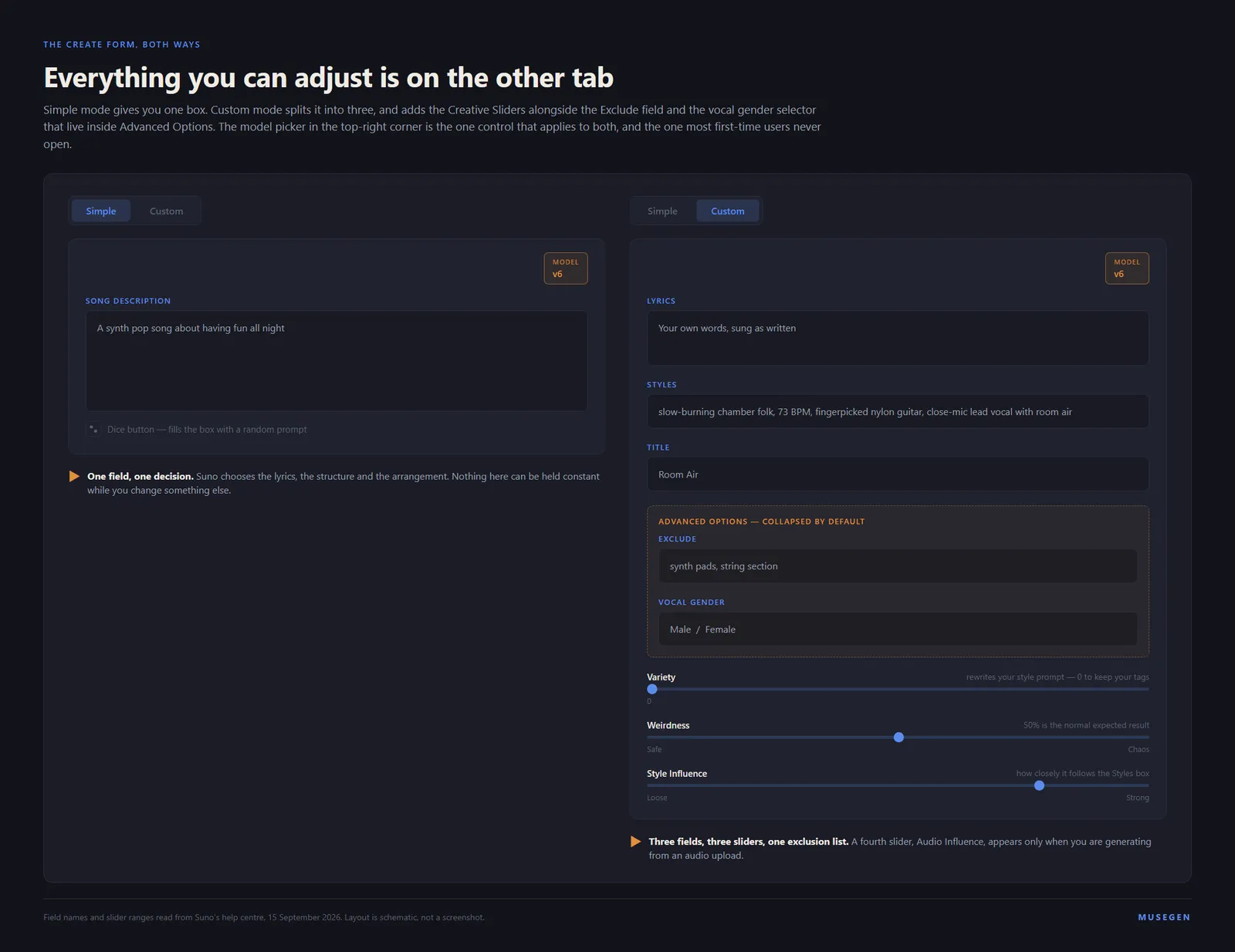
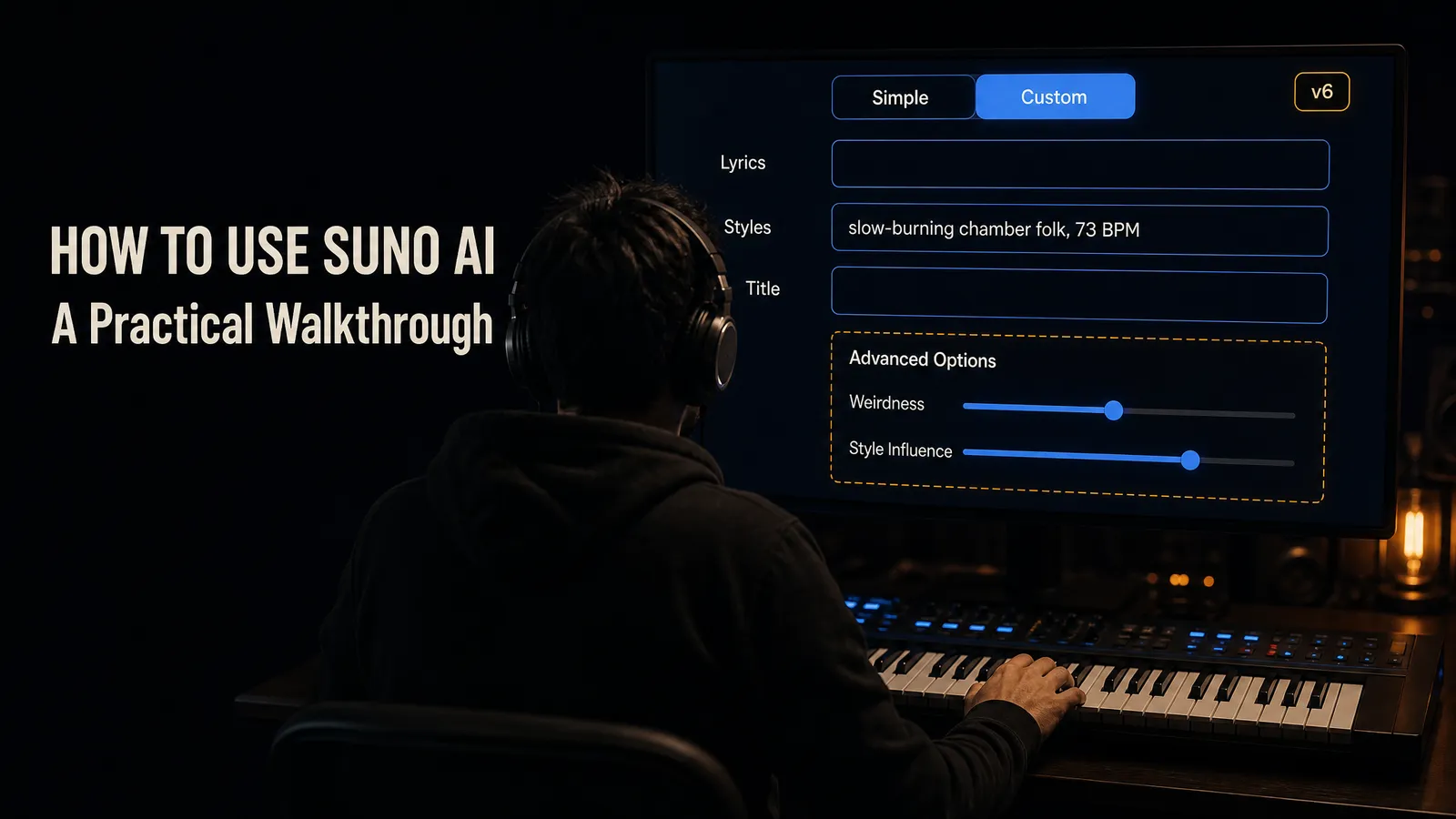
The same form, two modes. Everything in the right-hand panel except the model picker disappears when you switch back to Simple — which is why a first hour spent entirely in Simple mode leaves most people convinced the tool has fewer controls than it has.
Custom mode, and the three boxes
Choose Custom from the options at the top of the Create form and the single description field splits apart. Suno's help centre frames this as the mode for giving more detail, including a space to enter your own lyrics, and that framing understates it: Custom is not Simple with extra fields, it is a different way of working, because it lets you hold one thing constant while you vary another. The three boxes are lyrics, style and title, and they are read separately.
The lyrics box takes words you have written, in full, and Suno sings them. There is also an instrumental toggle for when you want none. On ownership, Suno's help centre says that whichever version of Suno you use, you keep ownership of and rights to the lyrics you write and paste in yourself. That is a narrow statement about your own text rather than a statement about the recording that comes out, and the two questions are genuinely separate; the licensing side of it is a longer subject covered in our Suno review rather than here.
The style box is the one that rewards attention, and it is also the one that people fill with the wrong kind of writing. It is not a sentence about a song; it is a list of specifications. We have written at length about how to construct one — the six-slot approach in The AI Music Prompt Formula is the version we use ourselves, and there is a longer library of worked examples in The Ultimate Guide to AI Music Prompts. Rather than repeat any of that here, the relevant point for this walkthrough is which slot goes in which field: genre, tempo, instrumentation, production character and vocal type all belong in the style box, the words to be sung belong in the lyrics box, and anything phrased as a negative belongs in neither, for reasons covered two sections down.
A style box, filled in
slow-burning chamber folk, 73 BPM, fingerpicked nylon guitar, close-mic lead vocal with room air
Four specifications and nothing else: a genre, a tempo, one instrument named precisely enough to be actionable, and a recording character. No adjectives about how it should make anyone feel, because those are not instructions the model can check itself against. Keep this string byte-identical across every test you run in the next few sections, and change exactly one control at a time. You will learn more in six generations than in sixty re-rolls.
Below the three boxes sits a collapsed heading called Advanced Options, and it is worth opening on your first visit purely to see what is in there, because nothing on the closed heading tells you. Suno says the menu opens with Exclude, which has its own section below. Another of its contents is Vocal Gender, which Suno documents as a Male or Female selector reached by scrolling to Advanced Options in Custom mode — and which is a better instrument than the equivalent phrasing trick, since in Simple mode the only way to ask for the same thing is to write the words male or female into your description and hope. Suno's own advice is to use both together in Custom: select the Vocal Gender, and separately describe the character of the voice in the style box, its example being a gritty male vocal on blues rock.
The title box does the least and is still worth filling, because an untitled library becomes unnavigable faster than you expect. Suno organises finished tracks into a Library and into Workspaces, which its help centre describes as a way to manage your music, and both are far easier to use when the songs have names you chose.
The model picker, and the free-account ceiling
This is the control most first-time users never touch, and it has a larger effect on the result than anything you type. It sits in the top-right corner of the Create form. Suno's help page for changing models gives the procedure in four steps: go to the create page, select the model picker in the top-right corner, choose the model, and create as normal — your selection stays set until you change it again. That last clause matters more than it reads. The model is sticky, so a choice you made once three weeks ago is still in force, and if your results have drifted for no reason you can explain, check the corner of the screen before you rewrite your prompt.
There are three, and Suno characterises them in its own words. It calls v6 its flagship: reliable, precise, and consistently delivering polished genres and styles, for when you know what you want. It calls v6-wild a model built for exploration — less predictable, more varied, producing unexpected and ambitious results that give you something to riff on or bring back into v6 for refinement. It calls v6-mini faster and lighter, good for quick iterations. A fourth entry appears in the same picker for anyone who has trained one: Custom Models, built on your own music, which are a Pro and Premier feature.
Then the part that changes how you should read every Suno review you have ever seen. Suno states plainly that all users have access to v6-mini, and that Pro and Premier subscribers additionally have access to v6 and v6-wild. A free account is therefore not a rate-limited version of the engine people are writing about. It is a different, smaller model. If you have tried Suno on a free account and found the output thin, you have not necessarily formed an opinion about the thing being reviewed, and it is worth separating the two before deciding the tool is not for you.
Length is shared across all three. Suno's help centre says it can generate up to eight minutes of music in a single generation on v6, v6-wild and v6-mini alike, and points you at Extend to continue past that. There is one more line in the model documentation worth carrying forward: if you use Voices, Custom Models or My Taste, Suno advises making sure you are on a compatible model. Those features and the model picker are coupled, and the failure mode is silent — you get a generation that simply ignores the thing you set up.
Before you change anything else: open the model picker and read what is in it. It is the only setting on the page that persists between sessions, applies to both modes, and cannot be inferred from the result you are looking at.
If you would rather watch the three models being used than read a description of them, Suno published its own tour of the generation on the day it shipped. It is the vendor's video, made to sell you the thing it is describing, and the enthusiasm should be read in that light. What a written page cannot do and a screen recording can is show you an interface that changes every few weeks. Its published chapter list runs from the difference between the three models, through creating from several references at once, sampling part of an existing track, and editing a finished song, to the advanced controls and the wild variant.
▶ Watch on YouTube: "Suno v6 Is Here: Everything You Need to Know" — the vendor's own 17-minute tour, published 9 September 2026
The sliders, and the one to turn down first
These are the cheapest way to change a result without touching your prompt, and they are also the clearest illustration of why a tutorial can be accurate and still leave you stuck. Suno's dedicated page on what it calls Creative Sliders was last edited in June 2025 and documents two of them. A third is documented somewhere else entirely, in the v6 FAQ, which was edited on 9 September 2026. Nothing tells you on the page itself that one of these is newer than the other, and the newer one is the one that will quietly undo your testing.
Variety is that one, and it deserves to be read twice. Suno's description is that the slider introduces variety in your outputs by adjusting and updating your style prompts, and that if you want to retain full control of your style tags you should reduce it to zero. Read literally — and there is no reason not to read it literally, since it is Suno's own sentence — the string the model works from is not necessarily the string you typed. That explains a failure people usually blame on themselves: you copy an example prompt out of a guide exactly, character for character, and the result does not resemble what the guide showed. It also has a practical consequence for everything else on this page. If you are changing one control at a time to learn what it does, the prompt has to be a constant, and with Variety above zero it is not one. Set it to zero before you start testing, and raise it later as a deliberate way of asking for spread.
Weirdness goes from Safe to Chaos, and Suno states that 50 percent is the normal expected result — which is the useful half of that sentence, because it tells you where the neutral position is rather than leaving you to guess. Style Influence lets you choose how closely the output stays to your style input, from Loose to Strong. A fourth, Audio Influence, appears only when you are working from an audio upload, and it governs how strongly that upload pulls the result.
The way to learn what they do is boring and it works: fix the prompt, fix the model, drop Variety to zero, and move one slider at a time. Generate at the neutral position, then generate again with Weirdness raised and nothing else changed, then again with it lowered. Six generations against one fixed string will teach you the shape of these controls on the kind of music you actually make, which is not necessarily the shape they have on someone else's genre.
Style Influence is the one worth understanding first, because it interacts with how well-written your style box is. Turning it up on a vague style string amplifies vagueness; there is nothing specific for it to adhere to more strongly. Turning it up on the kind of tightly specified string in the demo above is a genuinely different instruction, and the result usually lands closer to the tempo and instrumentation you named. In other words, the slider does not improve a weak prompt. It makes the prompt you wrote count for more, whatever it is.
A reasonable starting grid: Variety at zero, Weirdness at its neutral middle, Style Influence high. Judge the first pass purely on whether it honoured your specifications. If it did and the track is dull, that is when Weirdness earns its place. If it did not, the problem is in the style box and no slider position will fix it. Raise Variety only once you have stopped testing and want several different readings of a prompt you already trust.
Subtract, do not add
Almost everyone discovers this the same way. The generation keeps putting a saxophone in, so you add "no saxophone" to the style box, and the next generation has a saxophone in it, possibly a more prominent one. This is not a bug and it is not the model being contrary. The style box is read as a description of the song you want, and the strongest signal in the phrase "no saxophone" is the word saxophone.
Suno's answer is a separate field. Its help centre puts the procedure in four steps: start a Custom mode song as you normally would, click Advanced Options to open a menu that starts with Exclude, enter the things you do not want — instruments and similar — and then fill in the remaining details and create. The field exists specifically so that negatives never have to appear in your description at all, which is exactly the right design and also exactly the reason nobody finds it, because Advanced Options is collapsed by default.
- ✗ Style box: slow-burning chamber folk, 73 BPM, no synth pads, not orchestral ✓ Style box: slow-burning chamber folk, 73 BPM, fingerpicked nylon guitar · Exclude: synth pads, string section
Two habits make the field work harder. First, be concrete about what you are excluding: instrument names and named production elements are things a model can act on, whereas a genre negation is a blunt instrument that may take a lot of the character you wanted with it. Second, Suno asks you to use the thumbs up and thumbs down icons on tracks made with Exclude, saying it helps improve results. Whether or not that feedback loop reaches you personally, it costs a click.
There is a limit worth stating honestly. Exclude reduces the chance of something appearing; it is not a guarantee that it will not, and no field in any of these tools works that way. If a particular element is central to the genre you asked for, excluding it and keeping the genre word is an instruction at war with itself, and the fix is usually to describe the sound you want directly rather than to name a genre and then subtract from it.
Editing instead of re-rolling
The single biggest difference between someone who is fighting Suno and someone who is using it is where they go when the result is nearly right. The instinct is to press create again. The better move, most of the time, is to edit the take you have — and the editing tools are scattered across two different menus, which is the main reason people do not know they are there.
Extend is the one to learn first, and it is how you get past the eight-minute generation ceiling or fix an ending that fades out arbitrarily. Suno's steps: find the song, click the triple-dot icon to the right of its name and find Remix or Edit, scroll down to Extend, then click and drag from the white arrow inside the extend window to choose how much of the original you want to keep and where the extension should begin. Enter any new lyrics or style details and create. The step everyone misses is the last one: once you have an extension you like, open the triple-dot menu again, hover over Create and choose Get Whole Song, which stitches the new ending onto the original for you. Skip it and you are holding two fragments rather than a track.
Crop trims the beginning or the end. Suno describes it as a dedicated editing menu on the desktop web version: find the song in Library or Create, click the triple-dot menu, go to Remix or Edit, and click Crop Song, then click and drag across the waveform to make a selection, adjusting either end as needed. Clicking Crop Song adds a new track to your Library and Workspace rather than overwriting the old one. It is a Pro and Premier feature.
Replace Section is the one that changes how you work. Where Crop cuts from the ends, Replace Section rebuilds a piece of the middle — adding or removing sections, changing lyrics in place. Suno's procedure: from Create or Library, open the triple-dot More Actions menu, choose Edit, and locate Replace Section. Click and drag to highlight the part you want replaced; the original lyrics for that stretch are highlighted on the right and dropped into the Lyrics box on the left, where you edit them. Then click Recreate Section where Create would normally be, and confirm. Suno generates two versions, you listen to both and select one, and it then builds a new whole song containing your chosen section, tagging the results as Section and Full Song so you can tell them apart. This is also Pro and Premier.
Three more sit alongside these. Cover re-performs an existing track in a different style. Remaster, in Suno's description, creates subtle variations of a song. The Song Editor is a broader workspace for reworking a finished track. And in the current models there is a plain-language route into the same territory: Suno's v6 documentation says you can edit part of an existing song by describing the change, giving as its own example an instruction to change the chorus so it is sung by a gospel choir, while preserving everything else.
One setting belongs here rather than with the sliders, because the cases Suno names for it are all cases of repair. Max Mode is a switch you can turn on for any single generation when, in Suno's phrasing, you want the model to spend more on getting it right; it costs more credits, and Suno lists four situations where it is worth that: songs longer than two minutes, covers that should stay close to the source, transferring the style of one song onto another, and keeping vocals and style consistent across a whole track. For quick ideas and short songs, Suno says standard mode is all you need. That last clause is the part to take seriously. Max Mode is not a quality setting to leave on, it is a setting to reach for when a long track keeps losing the plot halfway through — which is precisely the complaint that sends most people back to Extend, or back to pressing create.
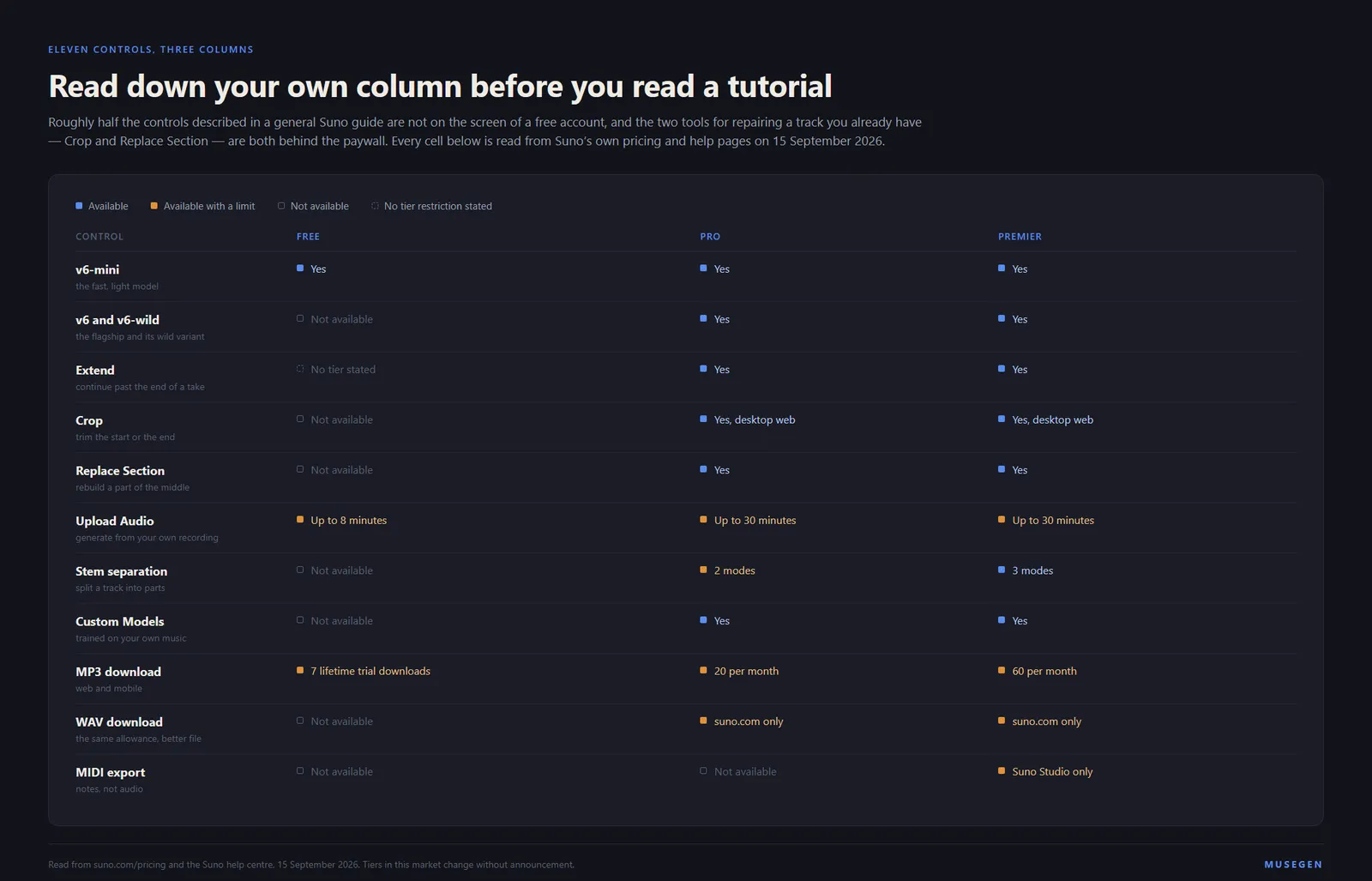
Read down your own column before you read a tutorial. Roughly half the controls described in any general Suno guide are not on the screen of a free account, and the interface does not always say so in advance.
If you are on a free account: Extend is your editing tool, and the workflow that suits you is to generate deliberately short and build forward, rather than to generate long and trim. Crop and Replace Section, the two tools for fixing a track you already have, are the ones behind the paywall.
Your own audio, your own voice, your own model
Three features let you push material into Suno rather than describing it, and they sit at increasing distances from the basic workflow.
Upload Audio is the shallowest. You bring in a recording — a riff, a hummed idea, an existing track — and generate from it. The length ceiling is a plan feature: Suno's pricing page lists uploads of up to eight minutes on the free plan and up to thirty minutes on Pro and Premier. This is also the only situation in which the third Creative Slider appears, so if you are working from an upload, Audio Influence is the control that decides how much of your material survives.
Voices is the feature most likely to make an older tutorial wrong, so it deserves a plain statement. Suno's help centre says that in the Create menu the Voices button has replaced Personas, and that Style Personas are still available inside the Voices menu, so you can carry on using Personas as you did while getting the newer behaviour. You can still create one from a track in your library by selecting Create and then Voice. Two restrictions are stated outright: Voices is not available to users under eighteen, and some users cannot access it depending on where they are. Suno also notes that other creators can Cover or Remix a song featuring your voice if you publish it or share a direct link and allow remixing in the publish options — worth reading before you publish anything built on a voice recording of yourself.
Custom Models are the deep end: models trained on your own music, available to Pro and Premier subscribers, and selectable from the same picker in the top-right corner as the stock models. Two smaller features round out the set — Add Vocals, which turns an instrumental idea into a song with a vocal on it, and Inspire, which starts a new song in the style of a playlist.
The coupling to remember: Voices, Custom Models and My Taste all depend on being on a compatible model. Suno says so in its own documentation for the model picker. If one of them appears to do nothing, check the dropdown before you conclude the feature is broken.
Getting a file out
Everything above is upstream of the only question that decides whether any of it was useful: can you walk away with the audio? Suno's mechanics here are straightforward; its allowances are not, and they are the part most worth reading carefully.
The mechanics first. Suno's help centre says you download from your Library or Workspace. For one song: find it, open the More Actions menu behind the triple-dot icon, hover over or select Download, and choose your preferred option. For several at once: hold Command on a Mac or Ctrl on Windows to pick individual songs, hold Shift to select a range, right-click one of the selected songs, choose Download All, then pick your file type and download. The batch arrives as a single ZIP file.
Then the formats, which are a tier ladder rather than a menu. Suno lists MP3 as available on all plans, on web and mobile. WAV is listed for Pro and Premier subscribers on suno.com, with the note that the mobile app defaults to MP3 — so the phone is the wrong place to collect a master. Songs can also be downloaded as video files. Stem files can be downloaded individually where stems exist, and Suno states that doing so does not count as an additional download. MIDI sits on its own: Suno lists it as applying to songs created in Suno Studio and restricted to Premier subscribers.
Stem separation itself is a paid feature with three modes, priced in credits. Suno describes Auto Split as dividing a track into up to twelve parts at fifty credits per extraction; Split from Mix as pulling out a single instrument or vocal plus its complement, at ten credits per extraction and twenty for both pieces; and Advanced Split as letting you choose your own set of separations from a list of nearly a hundred instruments. Pro reaches the first two. Advanced Split is Premier.
The allowances are where people are caught out, and they are stated clearly enough that there is no excuse for being surprised. A free account gets up to seven lifetime trial downloads, for personal and non-commercial use — the pricing page words the same thing from the other direction as no monthly song downloads. Pro is twenty downloads a month and Premier is sixty. They reset on your billing date and Suno says plainly that unused downloads do not roll over. Several of the rules run in your favour: re-downloading a song you already downloaded does not use another, taking the same song in multiple formats still counts as one, stems come with that song's download rather than on top of it, and a failed or interrupted download does not count. Additional downloads can be bought. And there is one carve-out worth knowing if you work that way — Suno states that if you are using Suno Studio, workflows are not affected by those limits.
- Collect on desktop, not mobile. WAV is a website feature; the app defaults to MP3, and a default taken once is a default taken permanently.
- Batch before you download. Multi-select and Download All costs the same against your allowance as doing it one at a time, and saves you from losing count.
- Take every format you might need in one pass. Multiple formats of the same song count as a single download, so there is no reason to take the MP3 now and wonder about the WAV later.
- Watch the reset date, not the calendar month. The allowance resets on your billing date, and nothing carries over from the period before it.
- Check the licence, not just the file. The free tier's trial downloads are described as personal and non-commercial, which is a separate question from whether the file arrived.
The policy around these numbers has moved more than once, and the history of that is a story in itself rather than a step in a walkthrough: we covered the change and what it meant for existing libraries in Suno's download limits, what changed and the alternatives. If you are converting what you did collect, our notes on going from MP3 to WAV are worth reading first, because an MP3 upconverted to WAV is a WAV-shaped MP3 and not a master.
The short version: learn the tab, the corner and the collapsed menu — Custom mode, the model picker, and Advanced Options. Those three account for most of the distance between a first afternoon and a working process, and none of them are visible on the screen you land on.
What transfers, and what does not
Most of this page is muscle memory for one interface, and muscle memory does not travel. The specific things above — where the triple-dot menu lives, what Get Whole Song is called, which slider sits at fifty percent — are true of Suno and of nothing else. We build a competing tool; that is disclosed here rather than left for you to find.
What does transfer is the shape of the work, and it is worth naming because it is the actually portable skill. A specification-shaped style string beats a sentence in every one of these tools. Negatives belong in whatever field the tool provides for them rather than in the description. Changing one variable at a time is how you learn an engine, and re-rolling is how you avoid learning it. Fixing what you have beats generating something new. Those four habits are why someone who has genuinely learned one generator is quick on the second one, and why someone who has only learned where the buttons are has to start over.
Those habits carry into MuseGen. The AI song maker takes the same kind of specification string as the style box described above, and the example prompt in this article pastes into it unchanged, because it was written against a general template rather than against Suno's form. There is a lyrics generator for the case where the words are the part you are stuck on, and a library of starting points at AI music prompts. The editing habit carries too: Edit song section, on paid plans, replaces the stretch you mark, anywhere from 7 to 60 seconds long, and lets you rewrite its lyrics first, the same job Replace Section does above. What is not there: no equivalent of Custom Models, no Voices, and no stem separation of generated songs. If one of those three is load-bearing, that is a real reason to stay where you are.
The honest comparison, then, is not feature-count. It is which constraints you run into first. If what stops you on Suno is the editing tools being behind a plan, that is a pricing question, and it is worth comparing what each tool's paid plan actually includes. If it is the download allowance, we wrote a whole page on what moving across actually involves, including the parts that do not move cleanly.
FAQ
How do I use Suno for the first time?
Go to suno.com/create, select Simple, and type a description of the song you want. Suno's own example in its help centre is a single sentence naming a genre and a subject. Press create and a track arrives in about a minute. That is the whole of the first run. Everything else in this walkthrough is about the controls you reach for once the first result is close but not right, and almost all of them live behind the Custom tab rather than in the box you just used.
What is the difference between Simple mode and Custom mode?
Simple mode gives you one description field and decides the rest. Custom mode splits that single field into separate boxes for lyrics, style and title, and it is the only place the Creative Sliders and the Exclude field appear. Suno's help centre describes Custom as the mode for providing more detail, including a space to enter your own words as lyrics. If you want a specific set of lyrics sung, or you want to keep one part of a description fixed while changing another, you need Custom.
Which Suno model should I use?
Suno lists three. It describes v6 as its flagship, reliable and precise, for when you know what you want. It describes v6-wild as built for exploration, less predictable and more varied. It describes v6-mini as faster and lighter, good for quick iterations. Only v6-mini is available on a free account; v6 and v6-wild require Pro or Premier. In practice that means a free account is not a restricted version of the paid engine, it is a different model, which is worth knowing before you judge the output.
What does the Weirdness slider actually do?
Suno documents it as running from Safe to Chaos, with 50 percent described as the normal expected result. It sits beside Style Influence, which runs from Loose to Strong and controls how closely the result sticks to what you typed in the style box. Both appear in Custom mode only. The practical advice is to move one at a time and keep the prompt fixed while you do, because moving both at once tells you nothing about which one caused the change. A third slider, Variety, is documented separately in Suno v6 FAQ: it adjusts and updates your style prompt before the model works from it, and Suno says to reduce it to zero if you want to retain full control of your style tags. Set it there before you test anything else, or your prompt is not the constant you think it is.
How do I stop Suno putting an instrument in my song?
Use the Exclude field rather than the style box. In Custom mode, open Advanced Options, and Exclude is the first thing in that menu. Type the instruments or elements you do not want there, fill in the rest of the form, and create as normal. Putting the same words in the style box works against you, because the style box is read as a description of the song you want and the name of an instrument in it is a reasonable thing for a model to act on.
How do I make a Suno song longer than it generated?
Use Extend. Open the triple-dot menu beside the song, choose Remix or Edit, and scroll to Extend. Drag the white arrow inside the extend window to choose how much of the original track to keep and where the new material should start, add any new lyrics or style notes, and create. When you have an extension you like, open the triple-dot menu again, hover over Create and choose Get Whole Song, which stitches the new ending onto the track for you. Without that last step you are left holding two separate pieces.
Where did the Personas button go?
It was replaced. Suno's help centre states that in the Create menu the Voices button has replaced Personas, and that Style Personas are still available inside the Voices menu, so the thing you were using has moved rather than disappeared. You can still make one from a song in your library by selecting Create and then Voice. Guides written before that change describe a button that is no longer on the page, which is the single most common reason a Suno tutorial stops matching the screen in front of you.
Can I get a WAV file out of Suno?
On a paid plan, on the website. Suno lists MP3 as available on all plans on both web and mobile, and WAV as available to Pro and Premier subscribers on suno.com, with the mobile app defaulting to MP3. MIDI is listed separately as something that comes out of Suno Studio and is limited to Premier. So if you need a WAV specifically, download it in a desktop browser rather than on your phone, and check the format menu rather than assuming the default is the best one offered.
Related reading
- Suno AI Review 2026 — the judgement this page deliberately leaves out: how it sounds and where it stops.
- The AI Music Prompt Formula — the six-slot template the style box in this walkthrough is filled against.
- Suno's Download Limits: What Changed — the policy history behind the allowances in the export section.
- Switching from Suno to MuseGen — what a migration actually involves, including the parts that do not move.
- What Are Stems? — what a stem separation is giving you, and what it cannot recover.
- The AI Music Generator Benchmark — the controls on this page measured against every rival engine, one table.
Sources
- Suno — Make a song in Simple Mode (edited 19 December 2025) for the create URL, the mode switch and the dice prompt.
- Suno — Can I use my own lyrics? (edited 19 December 2025) for the Custom mode description and the statement about lyrics you write yourself.
- Suno — Can I choose the gender of the singer in my song? (edited 9 September 2026) for the Vocal Gender selector, its location under Advanced Options in Custom mode, and the paired style-box example.
- Suno — How do I change models? (edited 9 September 2026) for the picker location, the four-step procedure, the sticky selection and the compatibility note.
- Suno — v6 FAQ (edited 9 September 2026) for the v6, v6-wild and v6-mini characterisations, the plan split, the multi-input Simple mode claim, the plain-language editing example, and the descriptions of the Variety slider and Max Mode quoted here.
- Suno — How long will my song be? (edited 9 September 2026) for the eight-minute single-generation figure.
- Suno — How to Use: Creative Sliders (edited 3 June 2025) for the Weirdness and Style Influence ranges, the 50 percent neutral point and the Audio Influence slider.
- Suno — How do I exclude elements of a song? (edited 19 December 2025) for the Advanced Options and Exclude procedure.
- Suno — How do I make my song longer? (edited 19 December 2025) for the Extend procedure and the Get Whole Song step.
- Suno — How do I crop a song? and Can I replace a section of a song? (both edited 19 December 2025): Crop and Replace Section for both procedures and their Pro and Premier restriction.
- Suno — Voices FAQ (edited 26 March 2026) for the statement that the Voices button has replaced Personas, the Style Personas note, and the age and region restrictions.
- Suno — Advanced Stem Separation (edited 12 June 2026) for the three separation modes and their credit costs and tier gates.
- Suno — How do I download songs?, What types of files can I download?, How many downloads come with my subscription?, Do unused monthly downloads roll over? and How do free trial downloads work? (all edited 9 September 2026) for the download menus, the format ladder, the monthly and lifetime allowances, the reset and roll-over rules and the Studio carve-out.
- Suno — Plan comparison for the upload length limits, the shared and priority queues and the free plan's stated absence of monthly song downloads.
- Suno Music — Suno v6 Is Here: Everything You Need to Know (published 9 September 2026) for the vendor's own screen tour of the v6 release, linked for the interface footage rather than cited for any claim on this page.
- Prompt construction follows the six-slot template in The AI Music Prompt Formula.